Identity Management
Identity Management provides an interface for managing admins, users and permissions. This can be found in the app under the section called Identity Management on the main navigation menu.
Authentication
User accounts can be configured to authenticate using four different authentication types:
Local Authentication - This type of user authenticates against the local database
Active Directory - Authentication for the user occurs via a configured Active Directory server
LDAP - Authentication for the user occurs via a configured LDAP authentication server
Azure Active Directory Authentication for the user occurs over OAuth 2.0 via a configured Azure Active Directory authentication server
When users execute write operations within the tool, their actions are recorded and can be accessed via Change History.
Installation (Enterprise Only)
The hierarchy of management can be understood as: Installation > Domains > Organizations > Groups/Roles/Users. An installation is the TRiA software suite comprising of API/Webservers, Cloud Harvesting, Automation system and database. TRiA can be deployed in a flexible manner from running entirely on a single server to scaling across multiple servers for performance and redundancy.
Domains (Enterprise Only)
Domains are a collection of Organizations and allow for domain administrators to manage Organizations.
Organizations (Enterprise Only)
Organizations allow for complete isolation between Cloud Accounts, resources and users on a installation. Cloud Accounts and their resources can only belong to one Organization and cannot be modified or viewed from another Organization.
Users/Groups/Roles
With the exception of domain admins, users may only belong to a single Organization. Domain admins my change between organizations but within their current session cannot modify or view Cloud Accounts, or the cloud’s resources, without first changing to the correct organization.
All other users are Basic Users and must be explicitly granted permissions via the Role Based Access system. The system is comprised of 1) Users, 2) Groups, 3) Roles, and 4) Scopes.
Groups are used to organize users together for the same set of permissions. Eg. Power Users, View Only, AWS-Development-Team, etc.
Permissions are defined by a Role. A Role consists of a name, description and one or more permissions:
All Permissions: Permission to execute any action within the role scope
View: Permission to view resources within the scope
Provision: Permission to create new resources
Manage: Permission to manage the resources in scope
Delete: Permission to destroy resources
A Role can then be associated with one or more Cloud Accounts or Resource Groups which is called the Scope of the Role. Many roles can be associated with a group. Likewise many Scopes can be associated with a Role.
Once a Group with Roles is created that is scoped to some resources, a user can be created and added to the group. Authenticate with this new user’s account and you will see the clouds or groups granted to the user.
For more information see the detailed articles below.
Permissions Entitlements
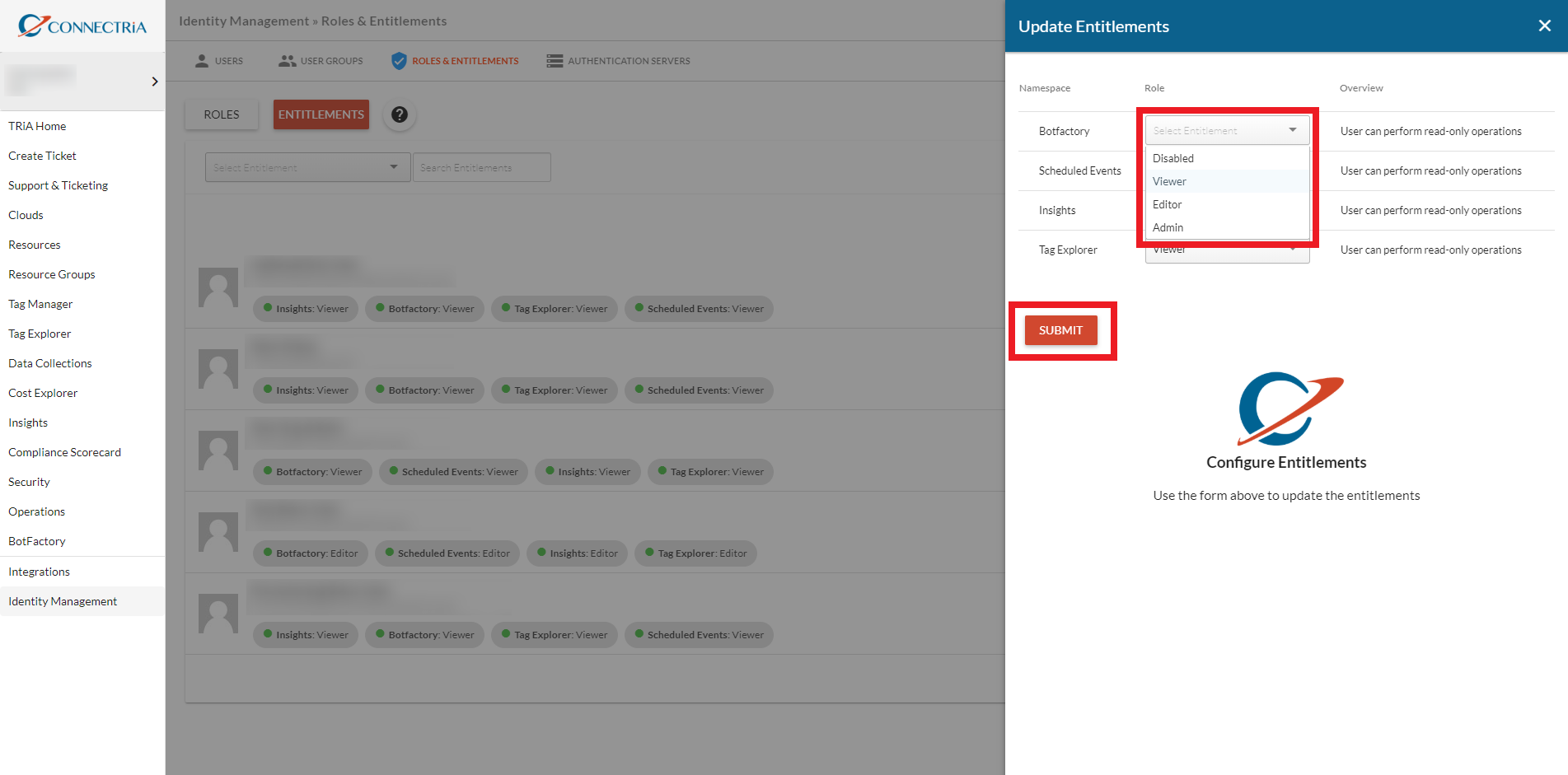
Entitlements give domain users control over basic users’ and organization admins’ permissions to access certain parts of the tool. Currently, entitlements are available for BotFactory, Tag Explorer, Insights, and Scheduled Events. The four possible permissions levels are “disabled”, “viewer”, “editor”, and “admin”. Entitlements are mix and match, e.g., a basic user might be “disabled” for BotFactory, but have “editor” permissions for Tag Explorer.
Disabled: A “disabled” user has completely restricted access to the specified area of the tool. The disabled section (e.g., BotFactory) will not even appear in the navigation menu for this basic user.
Viewer: A “viewer” will be able to see and navigate to the specified section of the tool but will not be able to edit or delete anything.
Editor: An “editor” will be able to see and edit. They will also be able to perform certain actions such as start, stop, pause, resume, etc. Editors do not have permission to delete.
Admin: A basic user with “admin” entitlements will be able to see the entire section of the tool, as well as edit, and perform delete actions. By default, all basic users will be given “Viewer” level access, meaning they will be able to see and navigate to all sections of the tool, but they will not be able to make any edits or deletes.
Configure Entitlements
A domain admin can add and remove entitlements for all users.
In TRiA, go to Identity Management -> Roles & Entitlements -> Entitlements
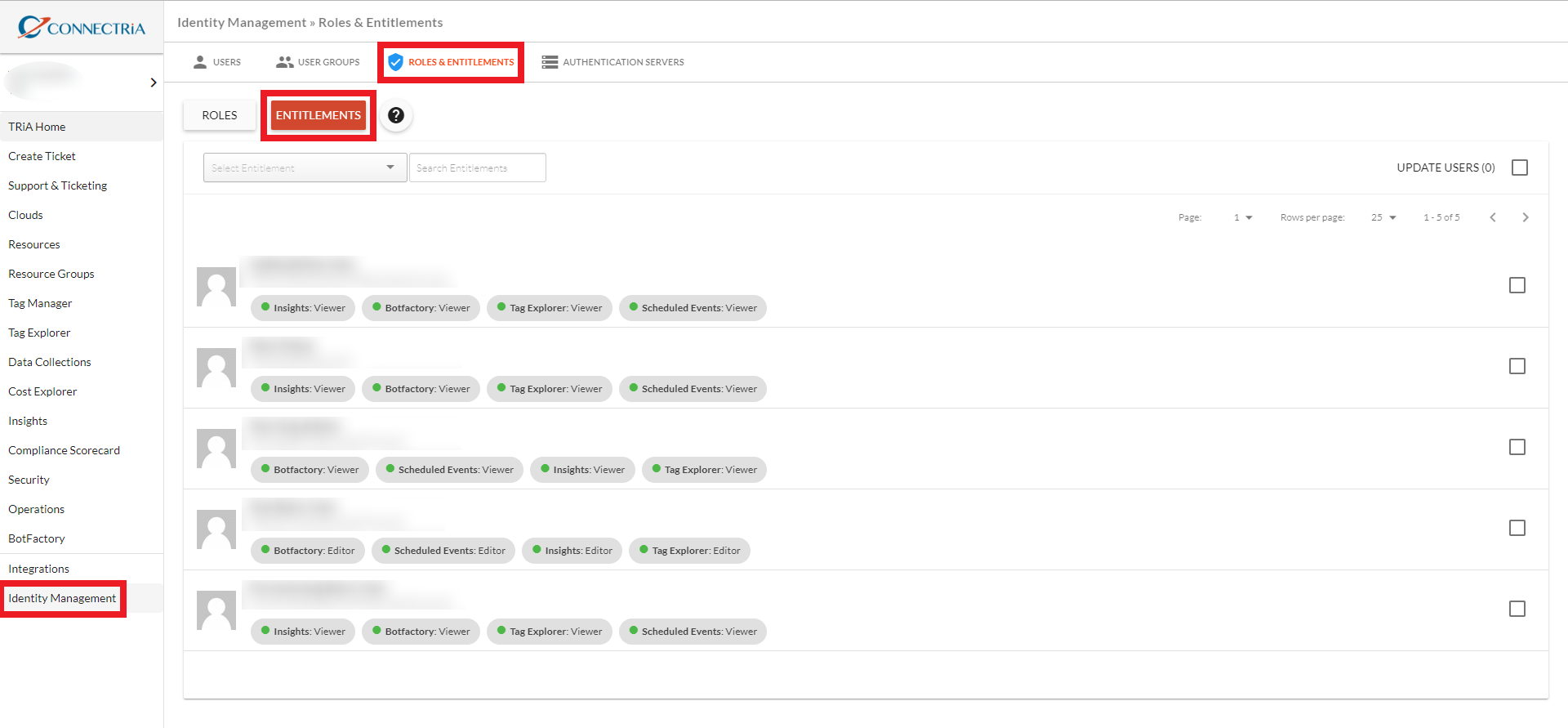
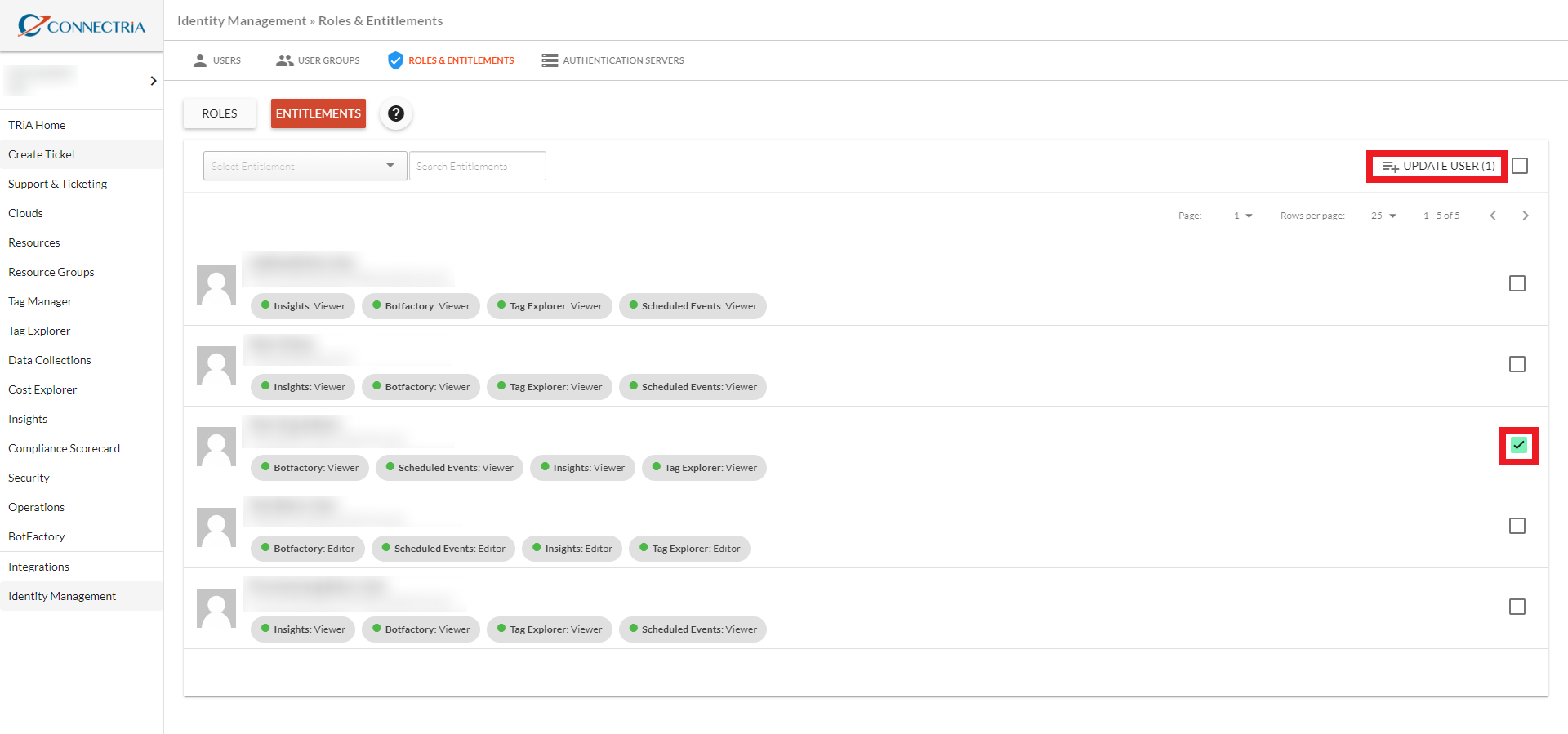
Find the User or Users you wish to update, and select the corresponding checkbox to the right of the User Name. Once you have selected all the users you wish to update, click the Update User button.
A modal will pop up with the sections of the tool that currently have modifiable entitlements. Select the Roles you wish to apply to the selected Users: Disabled, Viewer, Editor, or Admin. Once you have made the desired changes, click the Submit button.