Role Permissions & Scopes
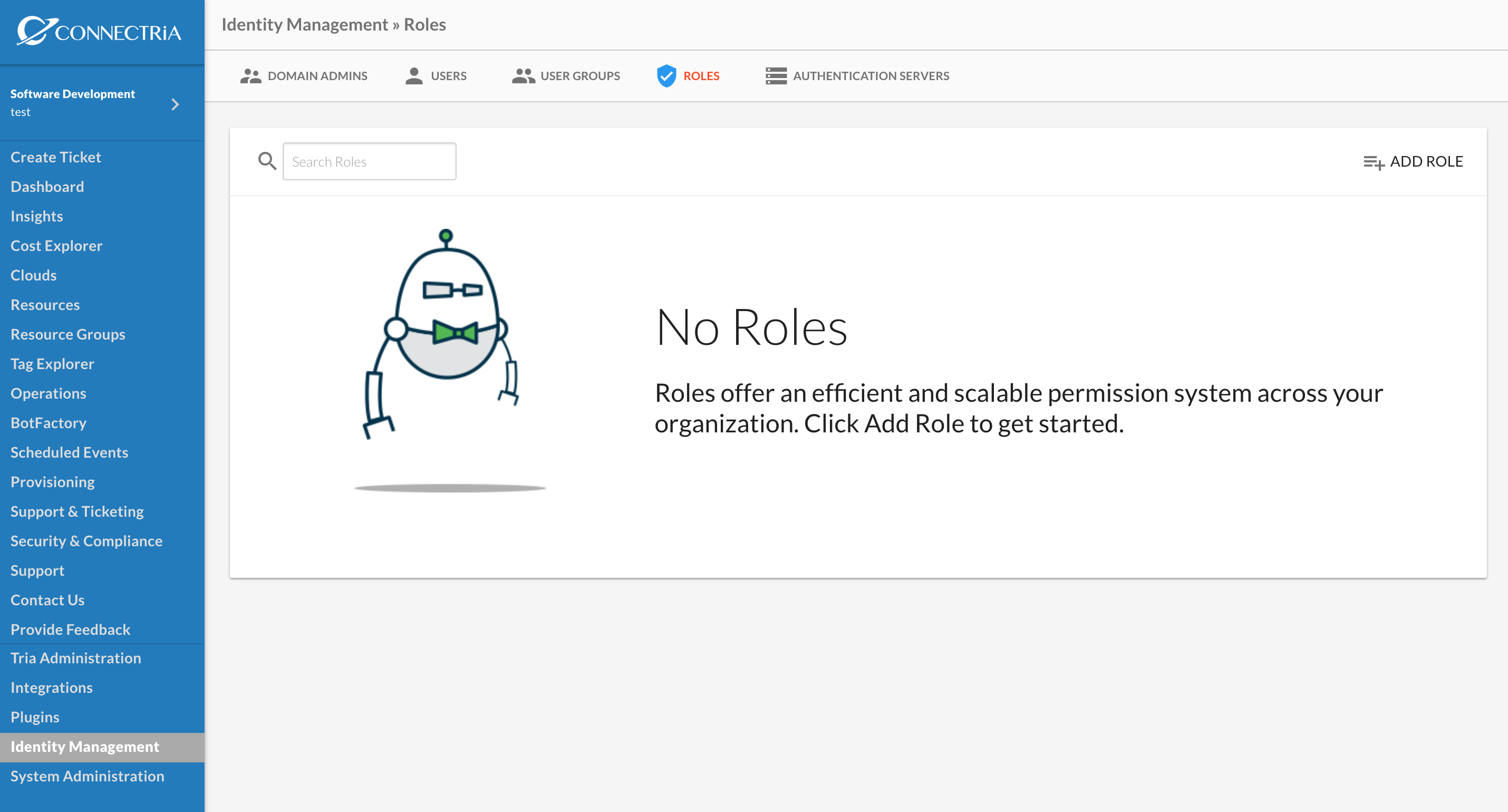
Roles store the specific permission details. Much like Groups, roles are simply a list of groups linked to a list of scopes. Continuing with the example of a read only security review group, start by creating a new role by clicking ‘Add Role’.
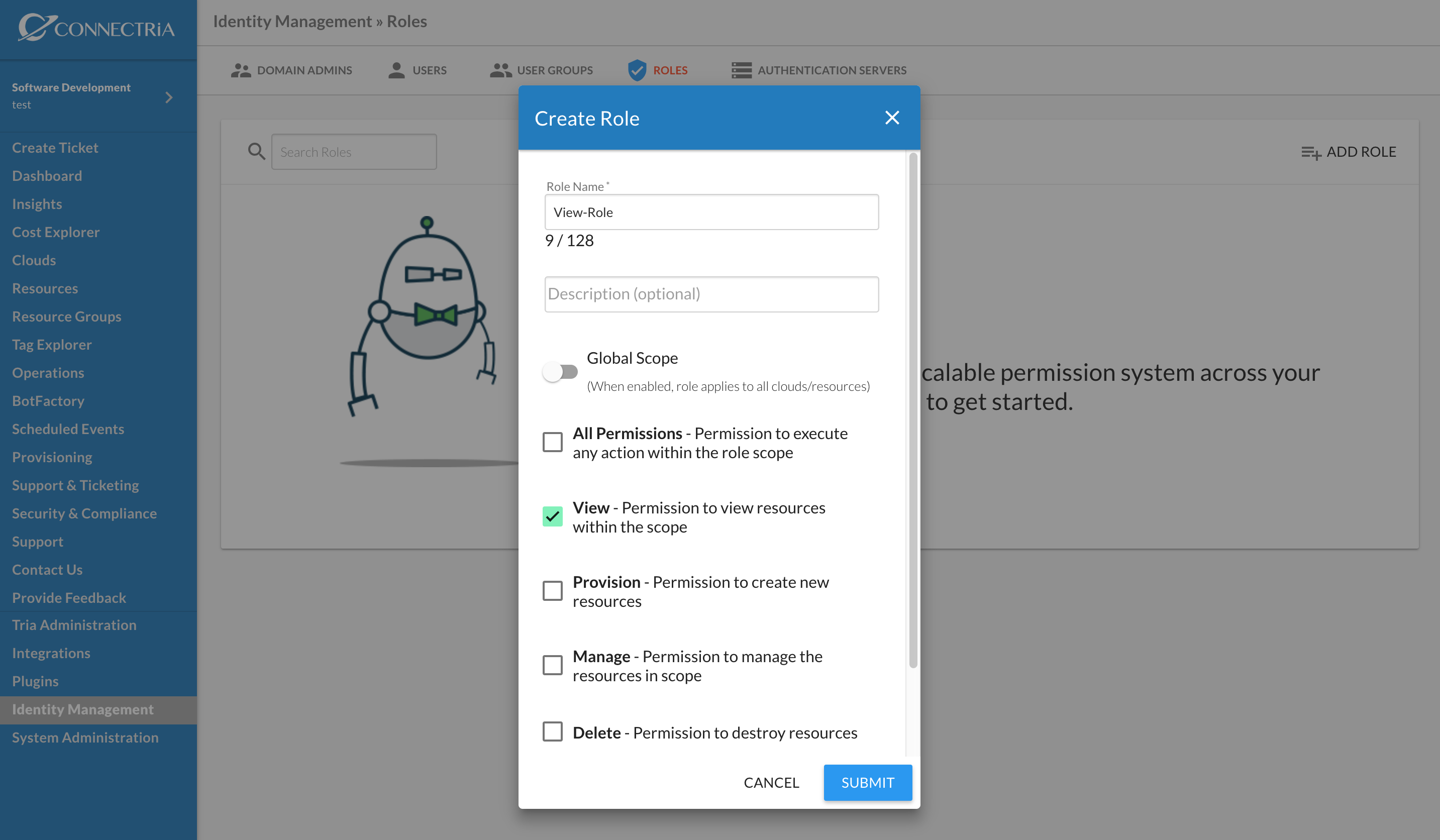
Create the new role with only ‘View’ permission.
Role
A role is a named permission set with one or more permissions from this list.
All Permissions - Permission to execute any action within the role scope
View - Permission to view resources within the scope
Provision - Permission to create new resources
Manage - Perimssion to manage the resources in scope
Delete - Permission to destroy resources
Scope
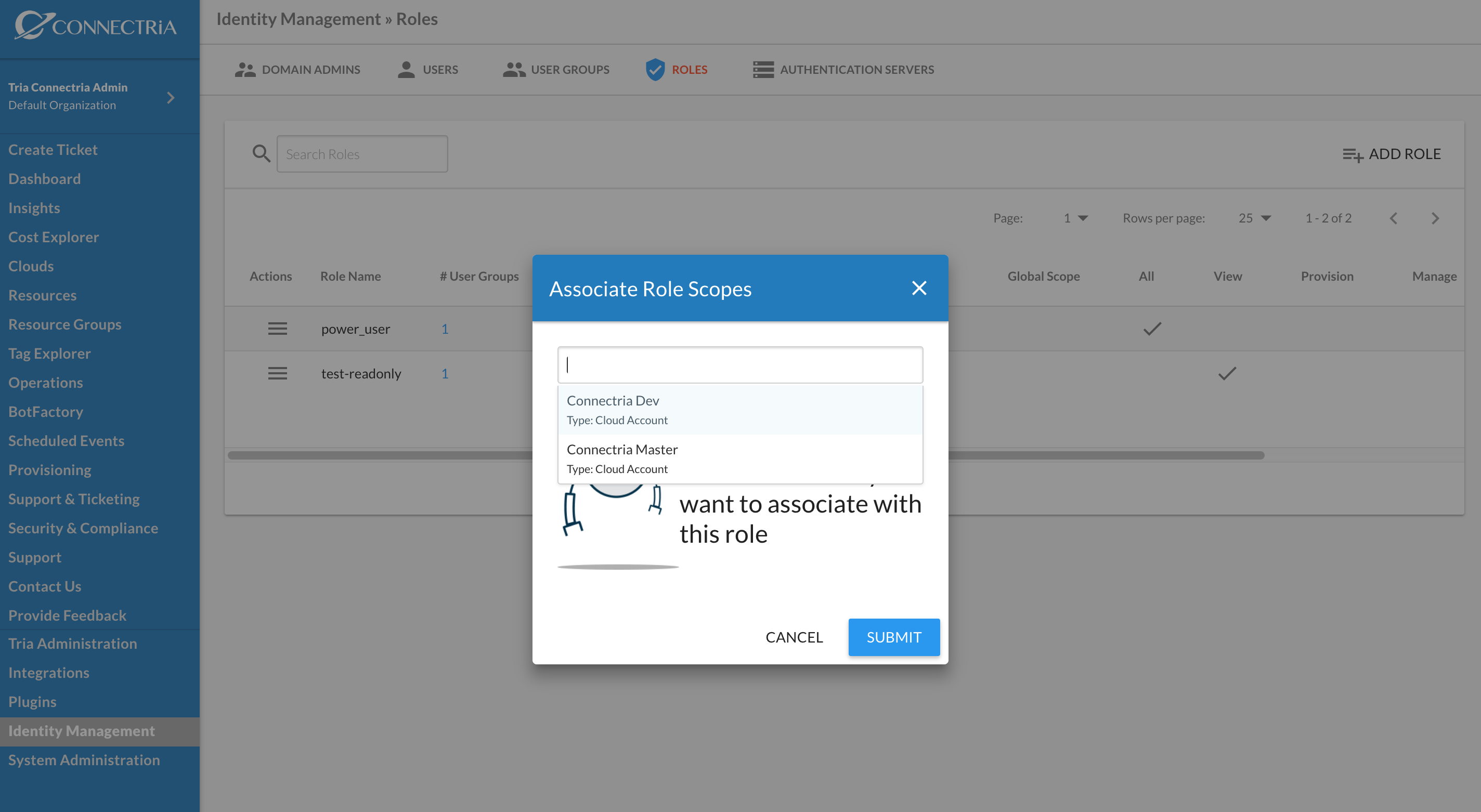
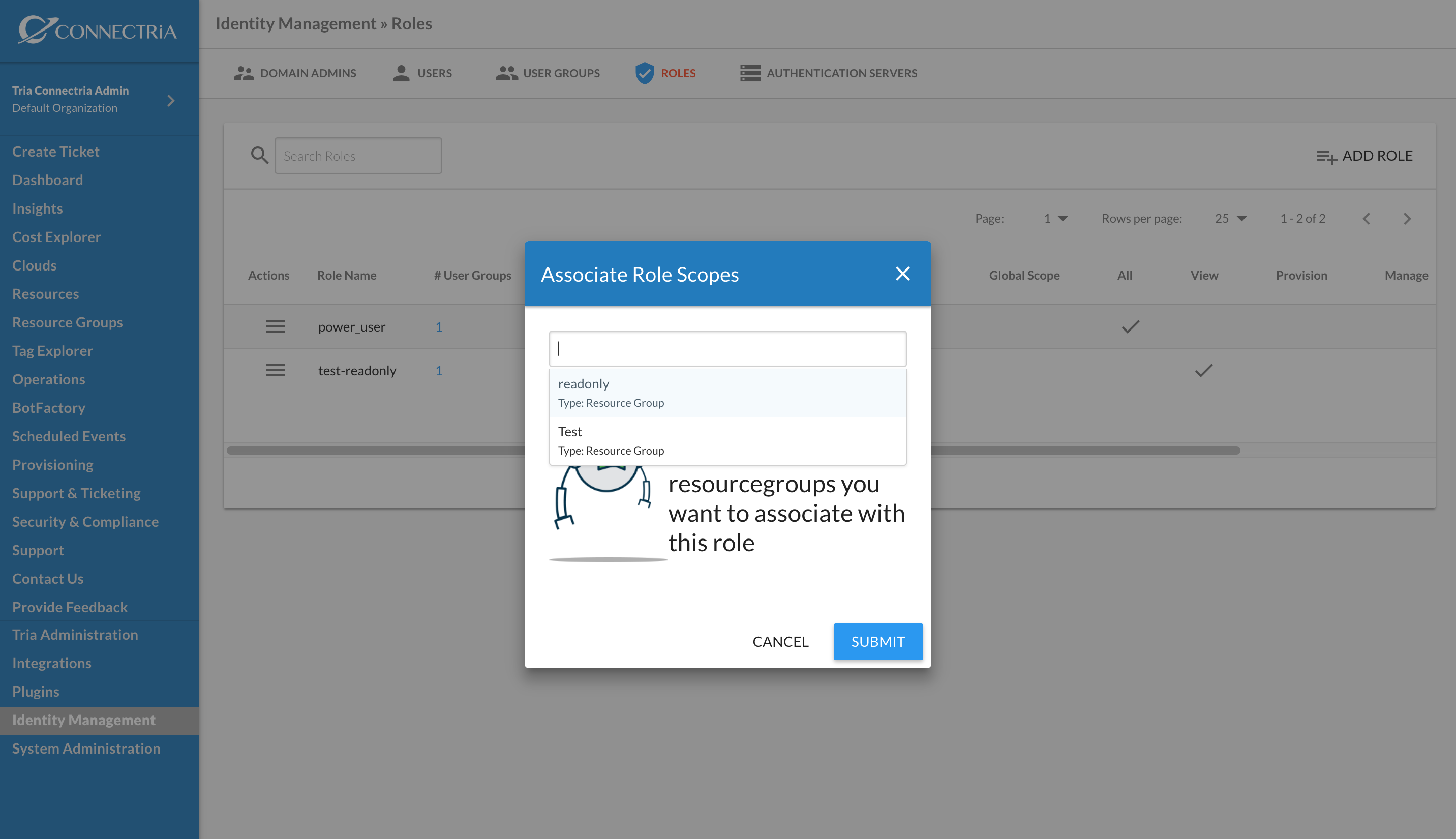
Scope link permissions to actual resources. Currently this can be either Cloud Accounts and/or Resource Groups.
Adding a Cloud Account or Resource Group as scopes to the Role will give access to all resources contained within them. In the example of a view only Role, users will be able to login and view the Cloud Account and its contained resources.
Add and/or Remove Cloud Accounts and Resource Groups and click save to sync the changes.
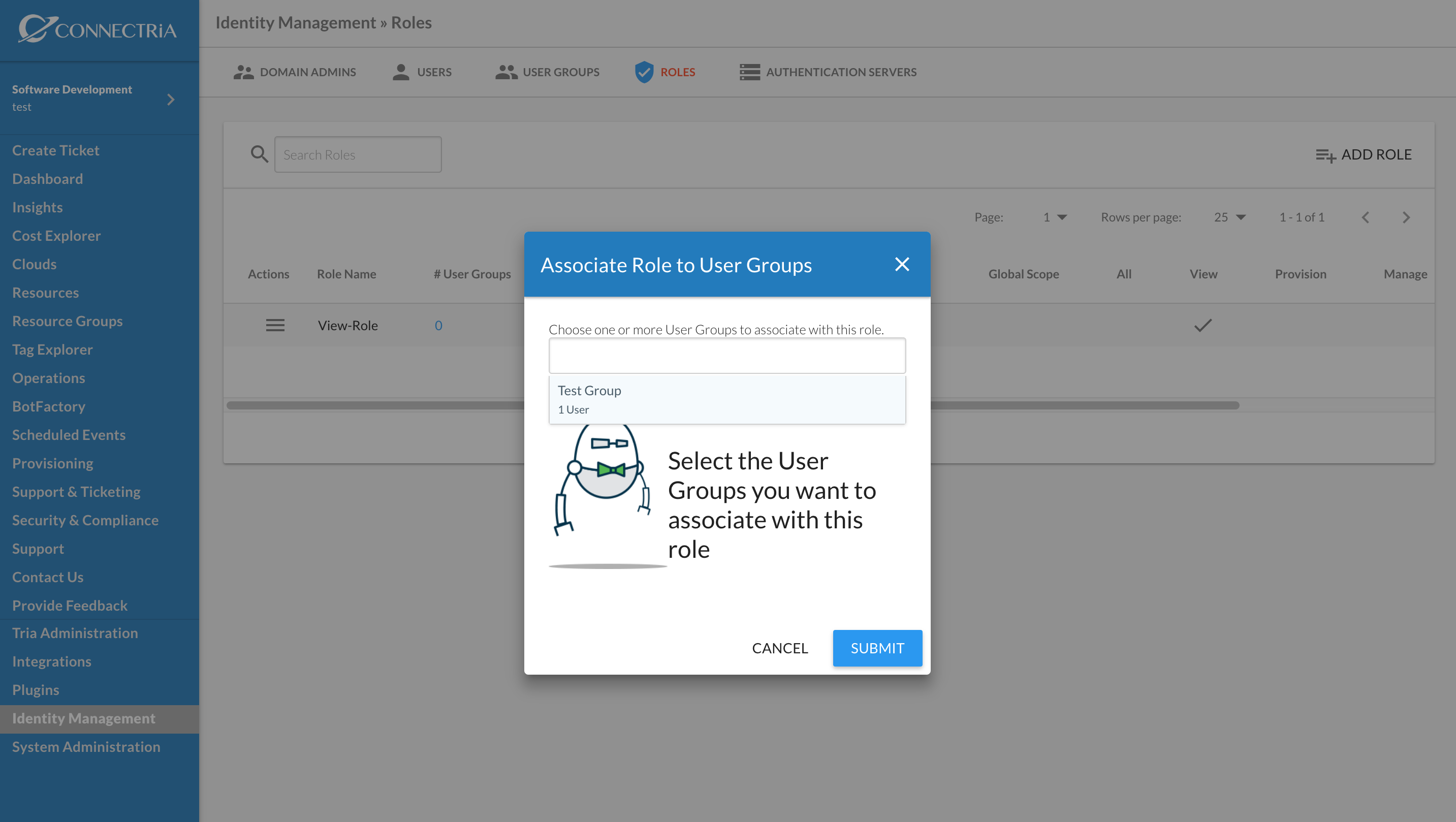
Now that the Role is created and scoped it needs to be associated with a group so users can use this permission set. This can be done from either the Roles or Groups tab in Identity Management.
Actions
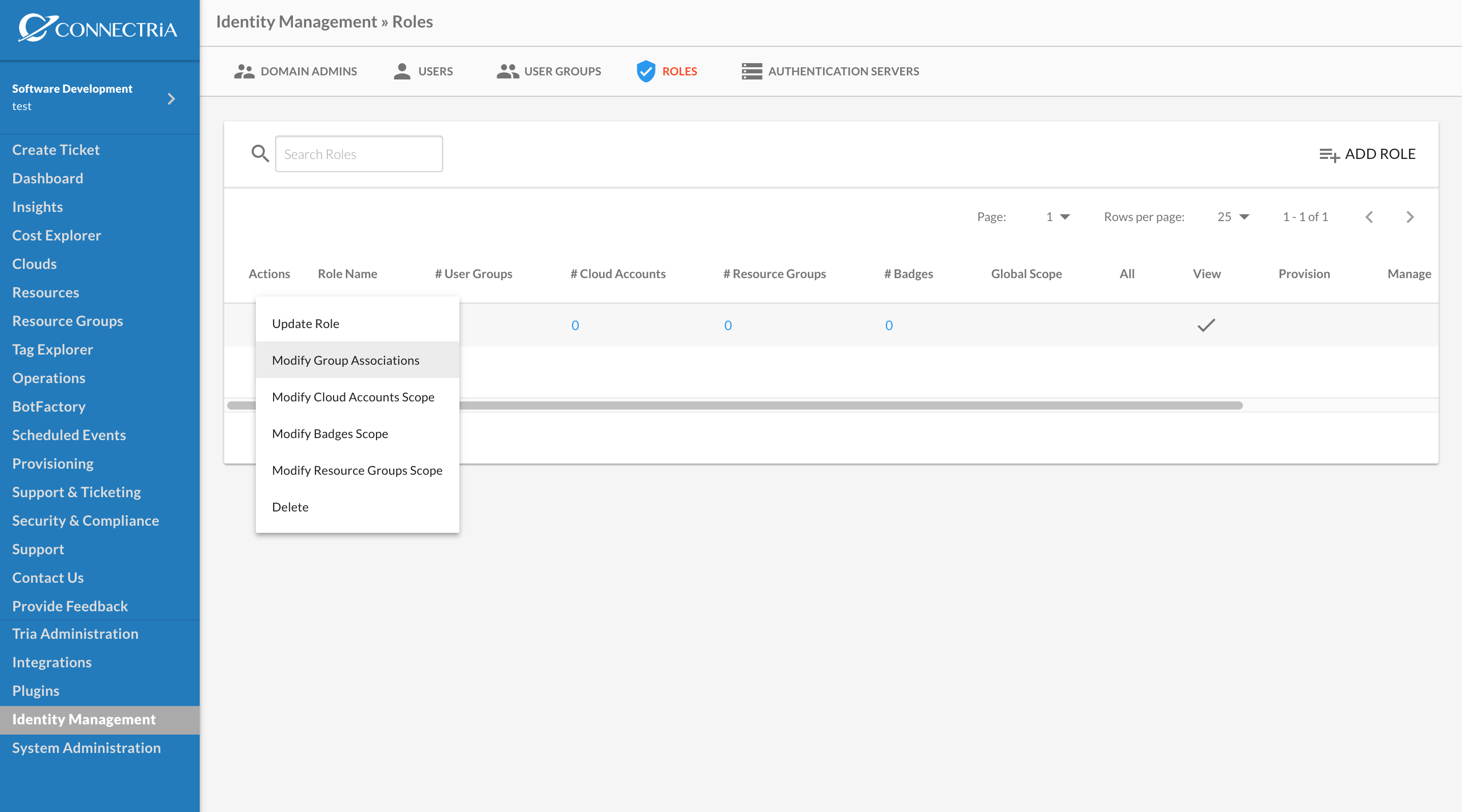
The following actions are available to modify Roles and Scopes.
Update Role: Modify name, description and permissions for Role.
Modify Group Associations: Add and/or Remove Groups.
Modify Cloud Accounts Scope: Add and/or Remove Cloud Accounts.
Modify Resource Groups Scope: Add and/or Remove Resource Groups.
Delete: Delete Role.
Conclusion
With the Role associated to the Group, we have successfully mapped permissions for a user to resources.
Software Development (User) <-> Test Group (Group) <-> View-Role (Role with View permissions) <-> Connectria Dev (Cloud Scope) and Test (Resource Group Scope)
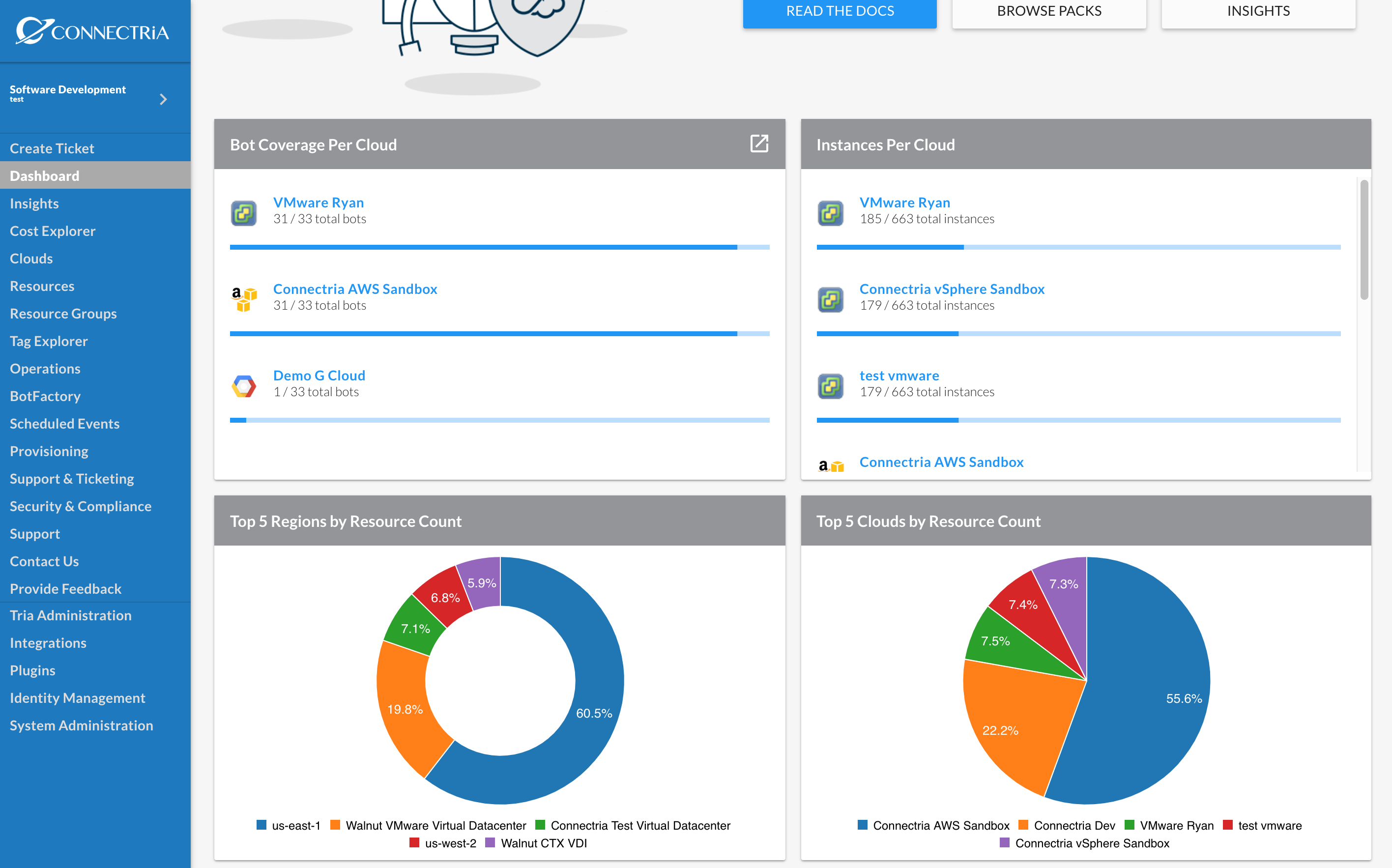
Verify the user has access by logging out, logging in as Software Development and the Cloud Account count on Software Devlopment’s dashboard will be one. Visit the Clouds or Resources section to browse.