Data Collections
Data Collections simplify resource filtering, Insight analysis, and Bot configuration. This feature allows administrators to build out reusable data definitions–collections of strings–that can be used and reused when creating and updating Filters, Insights, and Bots. The data collections can be associated with any number of the hundreds of filters in the product.
When you edit a Data Collection, all Insights and Bots that use that collection will automatically use the updated collection next time they run; you needn’t repeat your edits across multiple Insights and Bots.
Use Case Example
Say you want to specify a list of trusted accounts, and disallow certain kinds of activity from all other accounts. You might set up Bots configured with these Insights:
Resource With Cross Account Access to Unknown AccountNetwork Peers Connected to Unknown AccountsService Role Trusting Unknown AccountCloud Role Trusting Unknown Account
You’ll configure all of these Bots with the same set of account numbers. Manually entering and updating the account whitelist in all of these bots is a tedious and error-prone process; Data Collections can make correctly managing these reused inputs fast and easy, even for sets of tens of thousands of strings.
A Data Collection can contain up to 4MB of strings, allowing you to manage tens of thousands of entries, defining the behavior of many Insights and Bots, in a single list. The admin creating or editing a Data Collection is responsible for ensuring the integrity of the collection, e.g., a whitelist of accounts must contain only valid account numbers; Data Collections will not validate the entered lists.
The Data Collections Page
You can access the Data Collections page from the navigation menu. On this page, you can:
Add new entries – select New Collections in the upper right hand corner.
Delete outdated collections – check the box to the left of the collection to be deleted; then select the trash can that appears above the collections list.
View and edit your collections – select a collection by clicking on the blue text; edit or add descriptions for your entries.
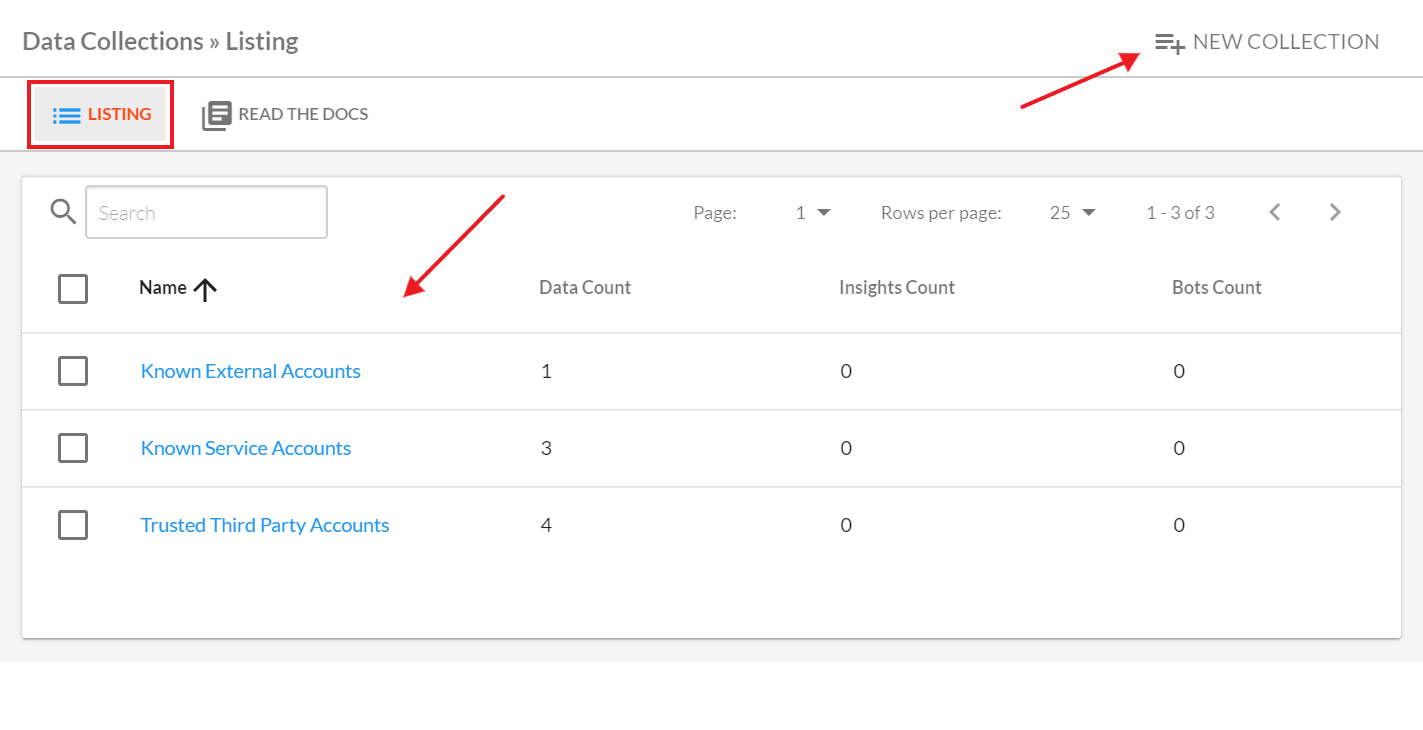
The Data Collections page lists all Data Collections.
The view of collection entries consists of:
A space to enter the input string (e.g., an account number).
A description – this can help you understand why items have been added to your Data Collection and assist in auditing and maintaining the collections.
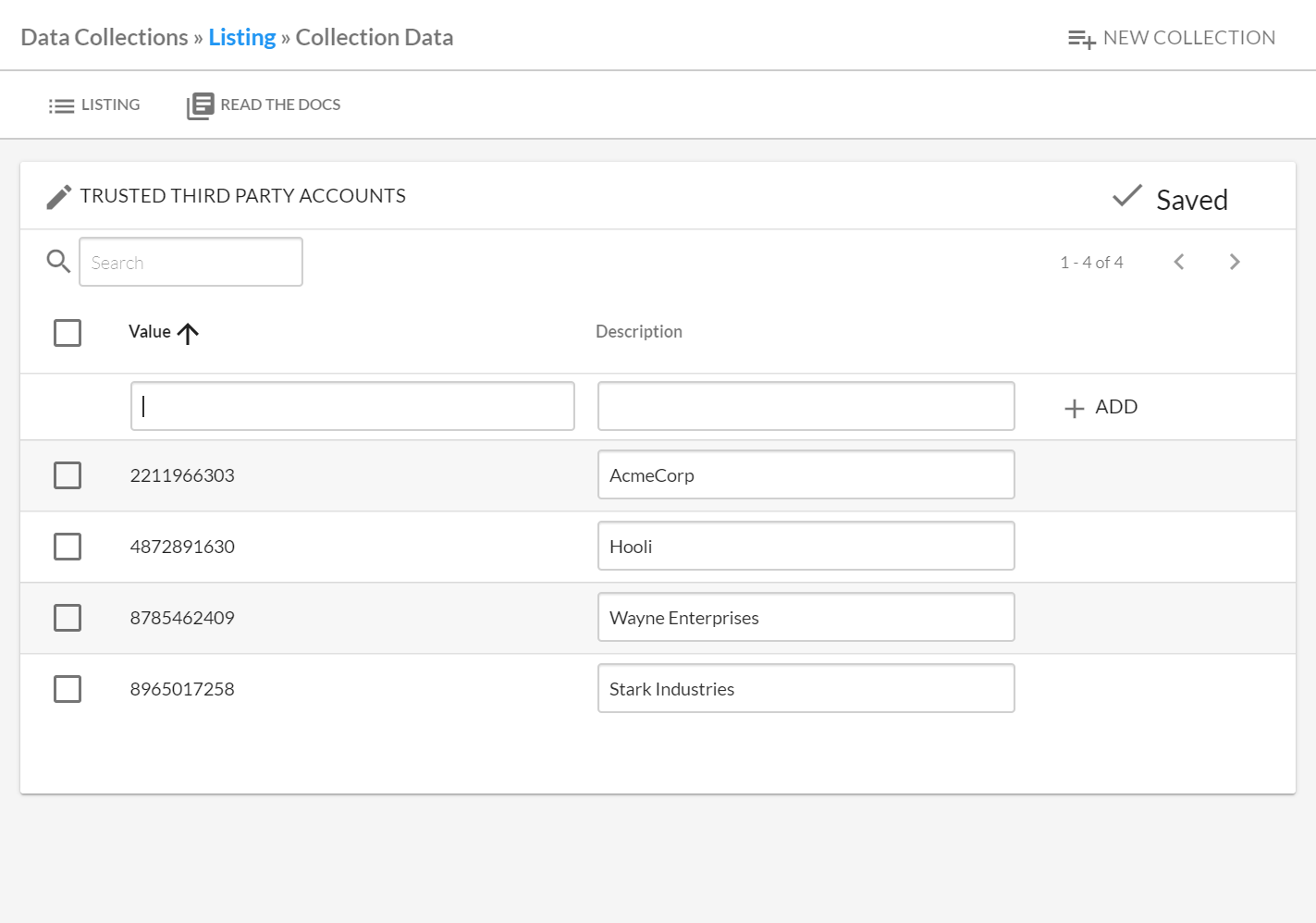
Descriptions for Data Collections give Meaning to the Contents in the Collection.
Using Data Collections
Note
The process described below uses data collections in filtering Resources. This same process, though, describes the use of data collections when working with Insights or Bots.
Creating a New Data Collection
To create a new Data Collection, first access the Resources page and select ‘Filters’ in the upper right-hand corner. This opens the Filters pane.
Next use the search bar to find the name of the filter of interest, e.g., Resource Trusting Unknown Account. Enter tags, names, or other strings to configure the Filter. Then select Create to create a new Data Collection containing these inputs. Finally use the Create modal to name the new collection.
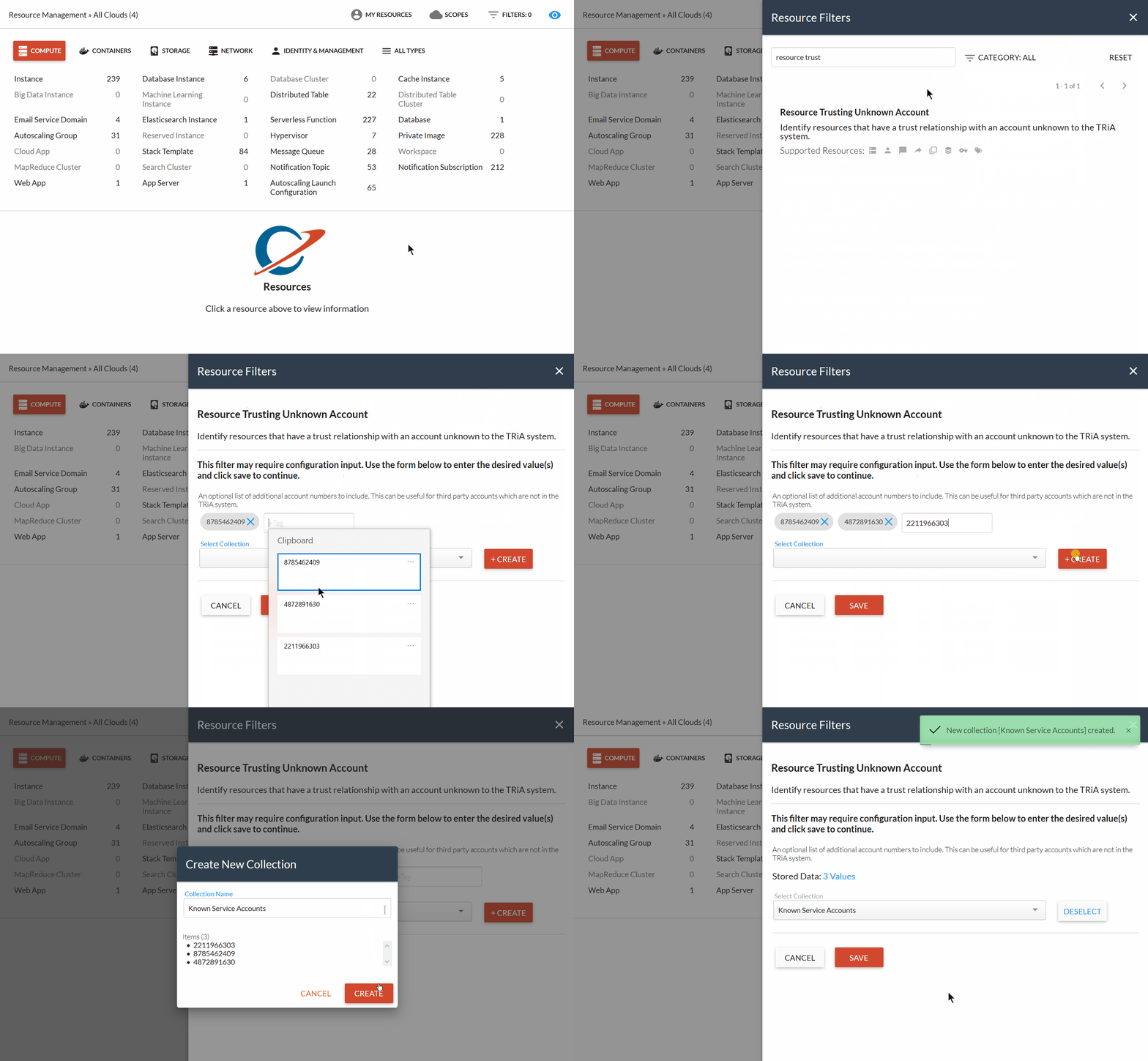
Creating a Data Collection by Filtering Resources.
Using an Existing Data Collection
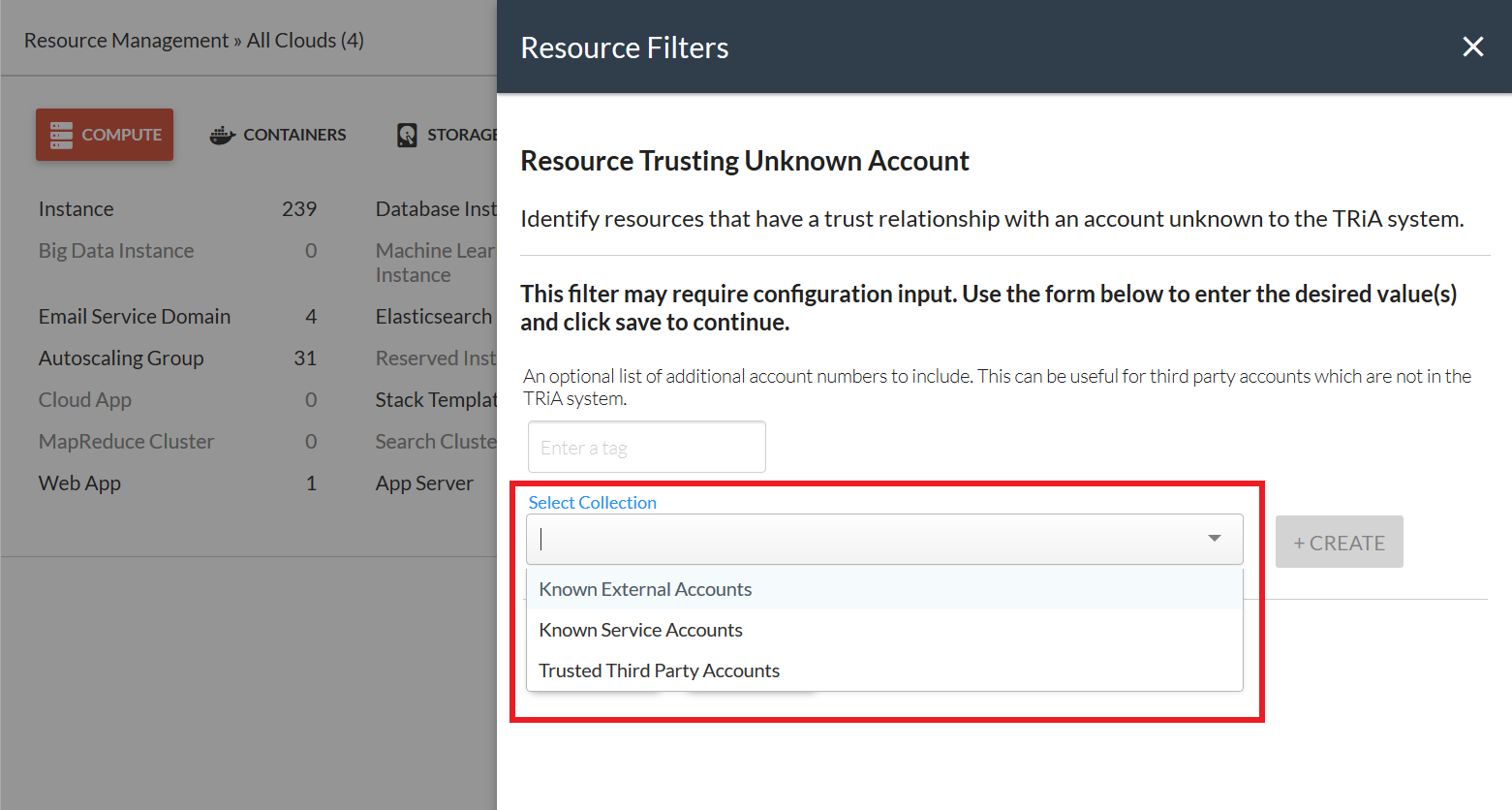
Alternatively, in the Resource Filters pane, you can select an existing Data Collection: