Organization Users
To begin managing basic users, go to the second tab of the Identity Management section. Note that domain admins are not listed here and are only found on the domain admins tab.
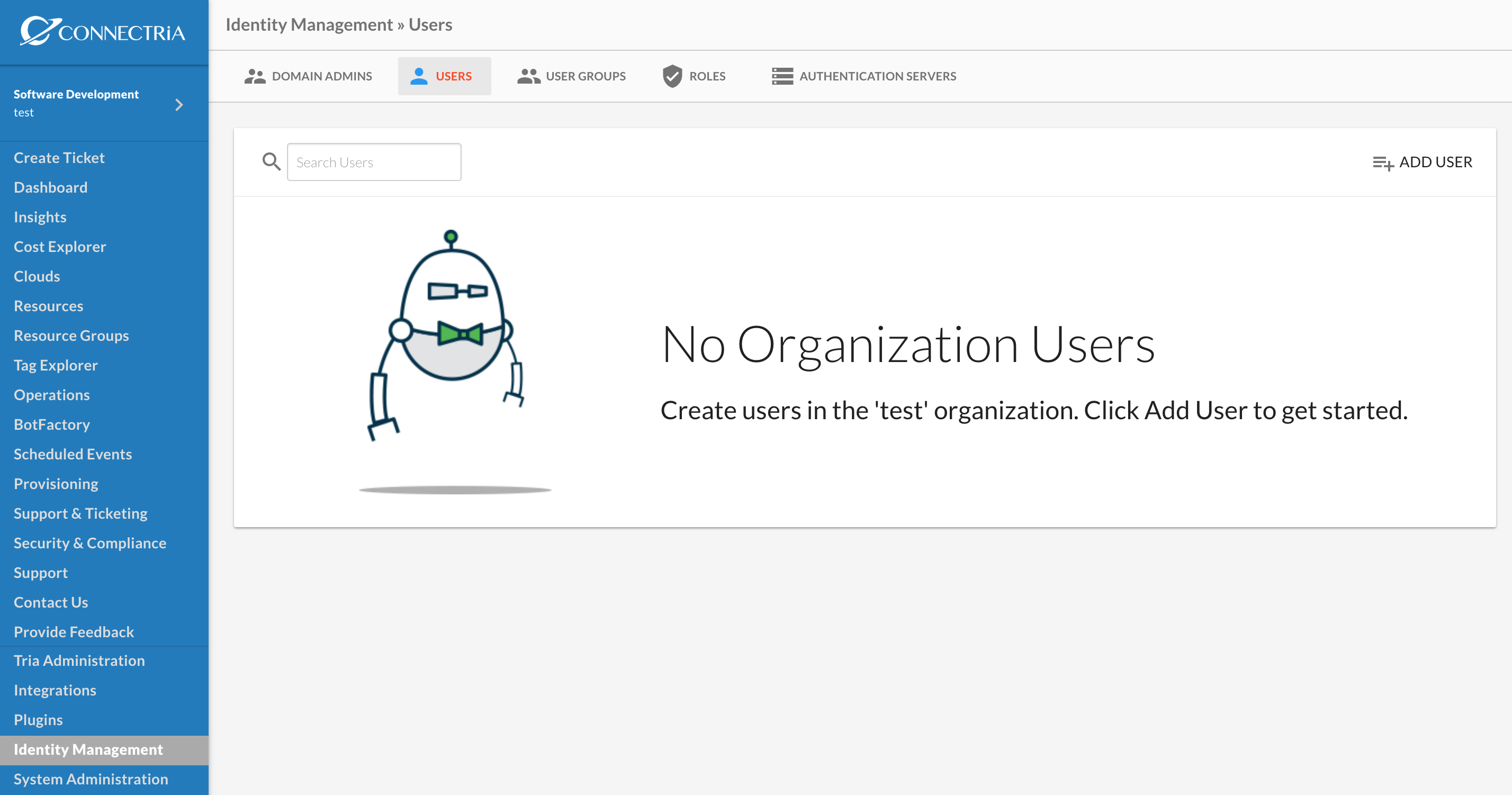
Start by clicking ‘Add User’ and select ‘Local Authentication’. Here you may select either Organization Admin or Basic User.
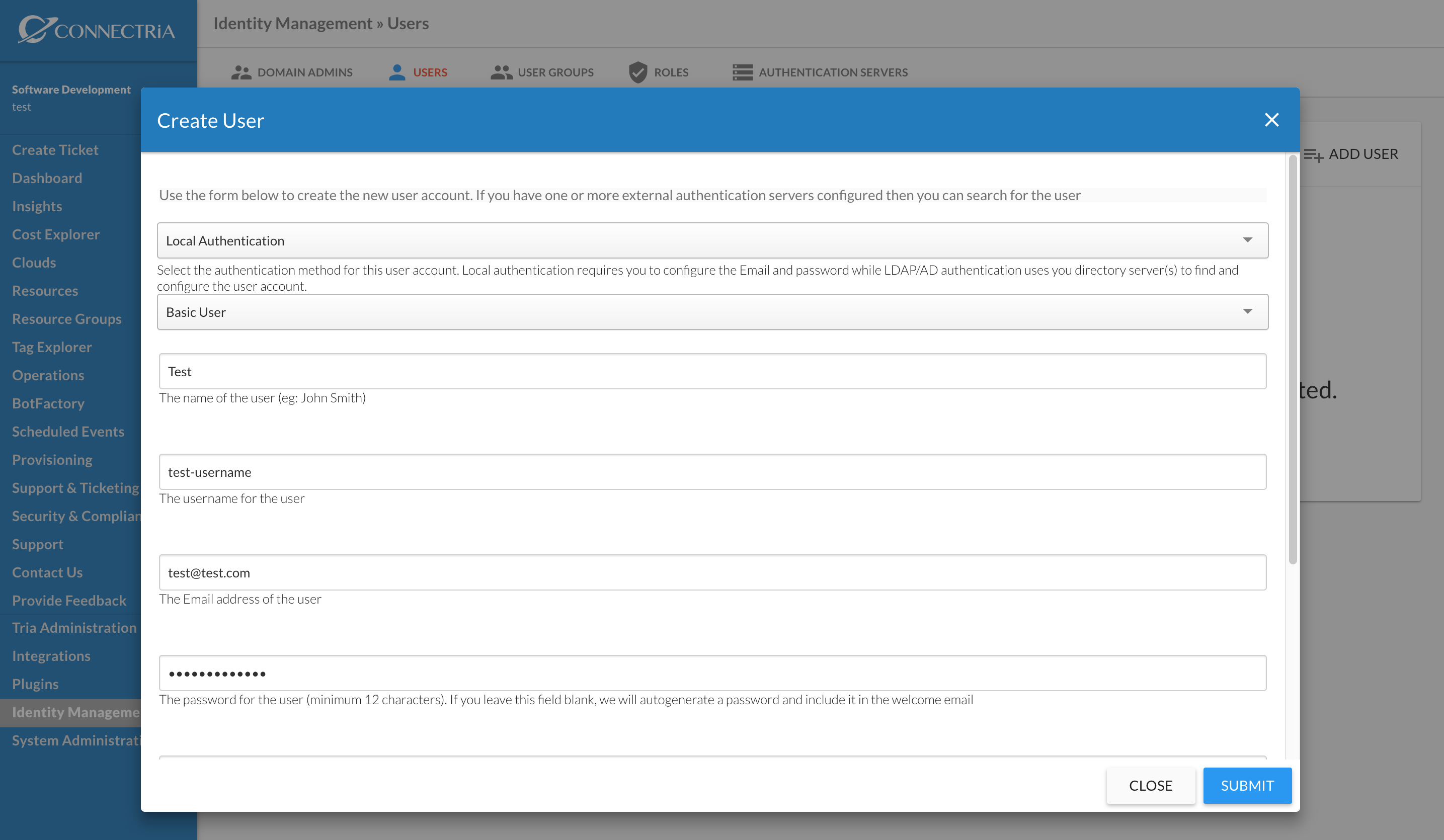
Organization Admins
These users have All permissions for all Cloud resources within the organization. You may add these users to Groups and assign permissions to them as you would basic users. However, Organization Admin permission will always take precedence. At any time a user can be converted from Organization Admin to a Basic User and likewise the reverse.
Basic User
Basic Users start with no access to cloud resources and must be granted permissions explicitly. This is done by associating users to one to many User Groups which will define the permissions allowed for users in the User Group.
TRiA resources such as Bots and Provisioning Templates are not restricted by permissions and are visible to all Organization Users.
A user’s aggregate permissions are the sum of permissions from all groups in which they are a member.
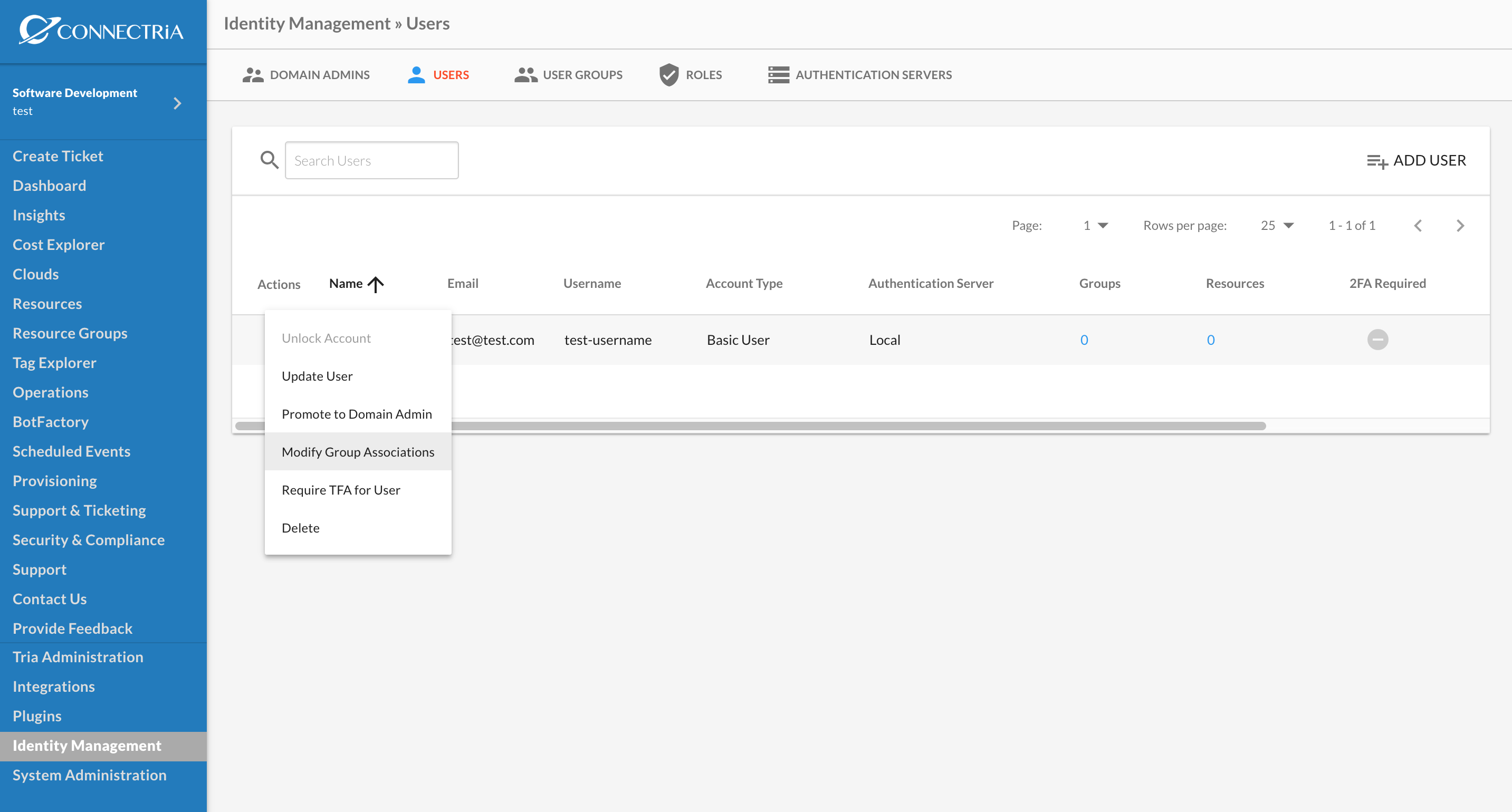
To manage groups for a user select ‘Modify Group Associations’. Add and/or Remove groups and save to sync the changes. Users can also be removed from a group from the group view which is covered in the next section.
Actions
The following actions are available to modify Organization Users.
Update: Modify name, email and password.
Modify Group Associations: Add or Remove user from Groups, which will grant/revoke privileges to a user from the Group’s roles.
Require Two Factor Authentication (TFA): Enable or Disable TFA for user. User will be required to setup TFA on their next login attempt.
Delete: Delete user, record is maintained for change history accountability but name and email are purged.