Cost Explorer
TRiA Cost Optimization
Dashboard
These tabs provide detailed information on your cost and usage data for past 12 months. It also breaks down cost data for each month.
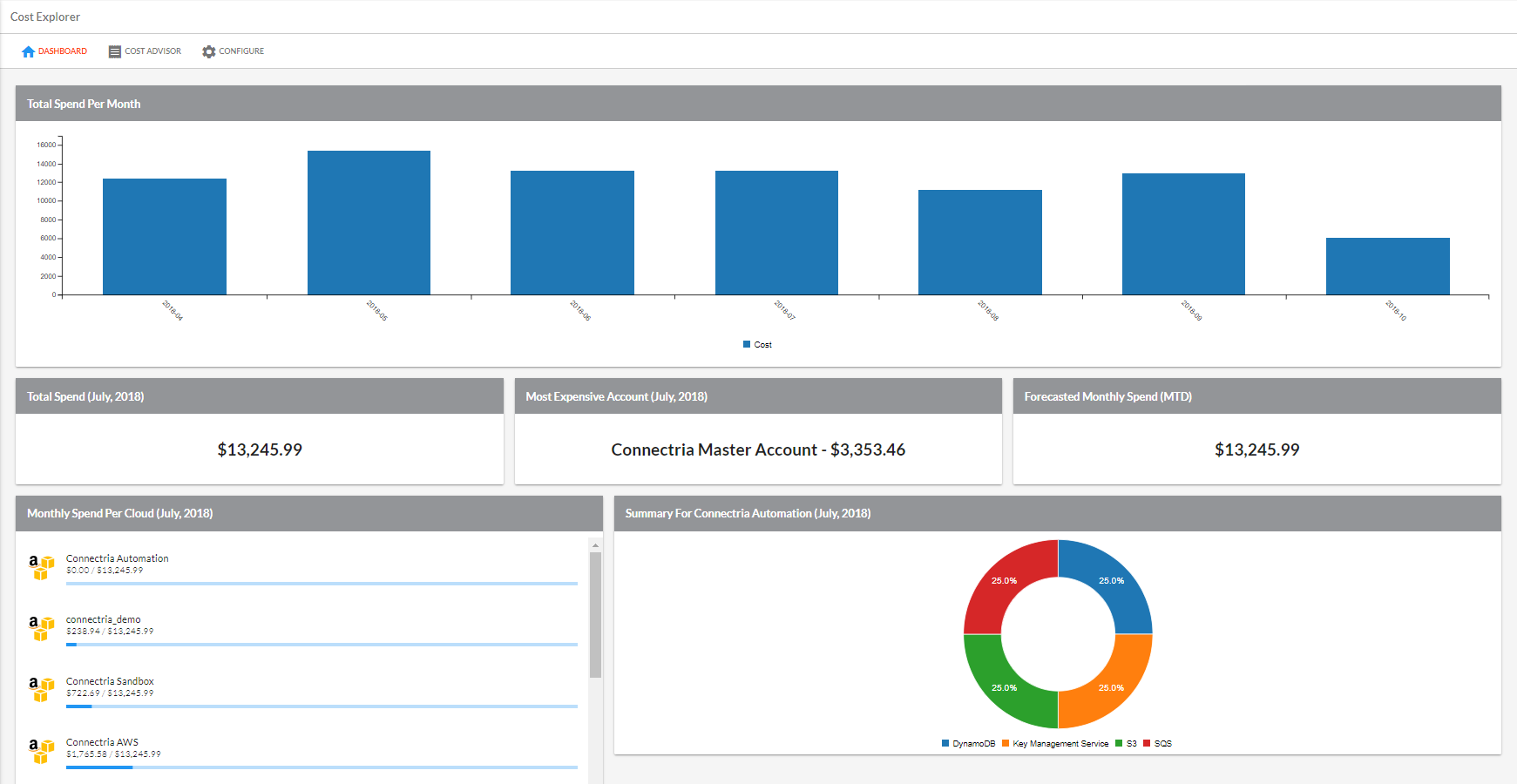
- Dashboard page elements:
Total spend per month
Total Spend
Most Expensive Account
Forecasted Monthly Spend(MTD)
Monthly Spend Per Cloud
Summary
Cost Advisor
Cost Advisor provides a summary of possible AWS savings.
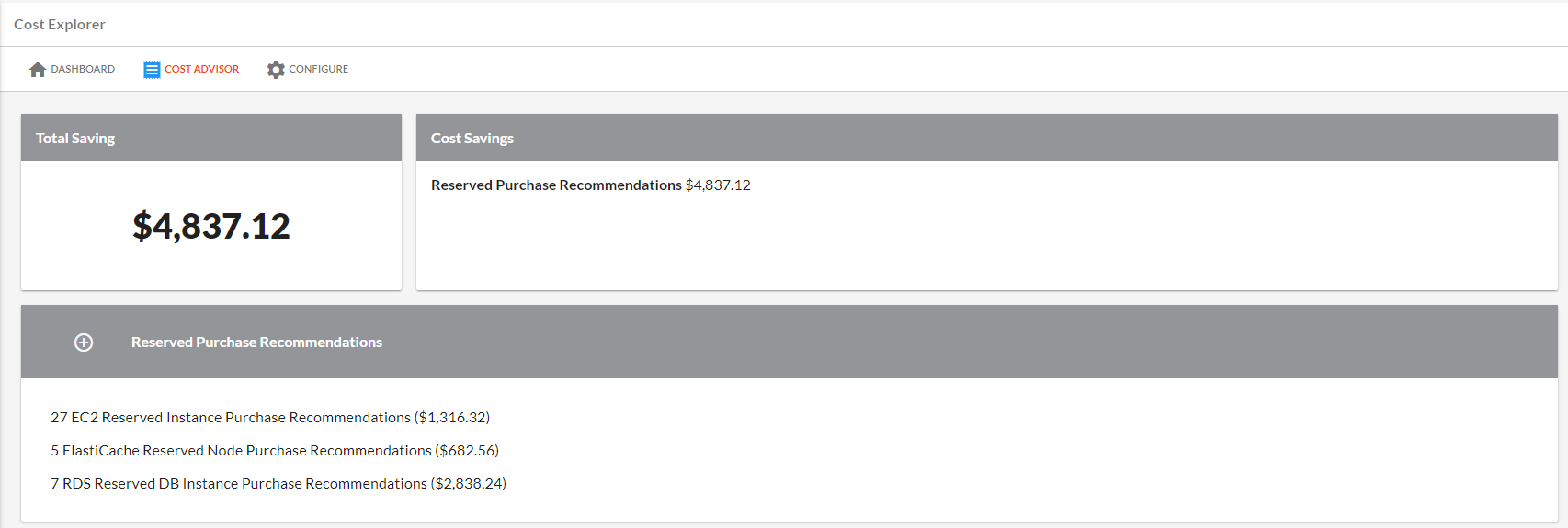
- Cost Advisor page elements:
Total Saving
Cost Savings
Idle Resources
Previous Generation Resources
Reserved Purchase Recommendations
Unused Resources
Resource Billing
Resource Billing provides a monthly spend of resources for each cloud type.
By clicking on a month in the table, you will get a breakdown of the cost of each resource type for that month. You can obtain more information for each resource, such as the resource id(s), by clicking on the “+” symbol next to the desired resource type.
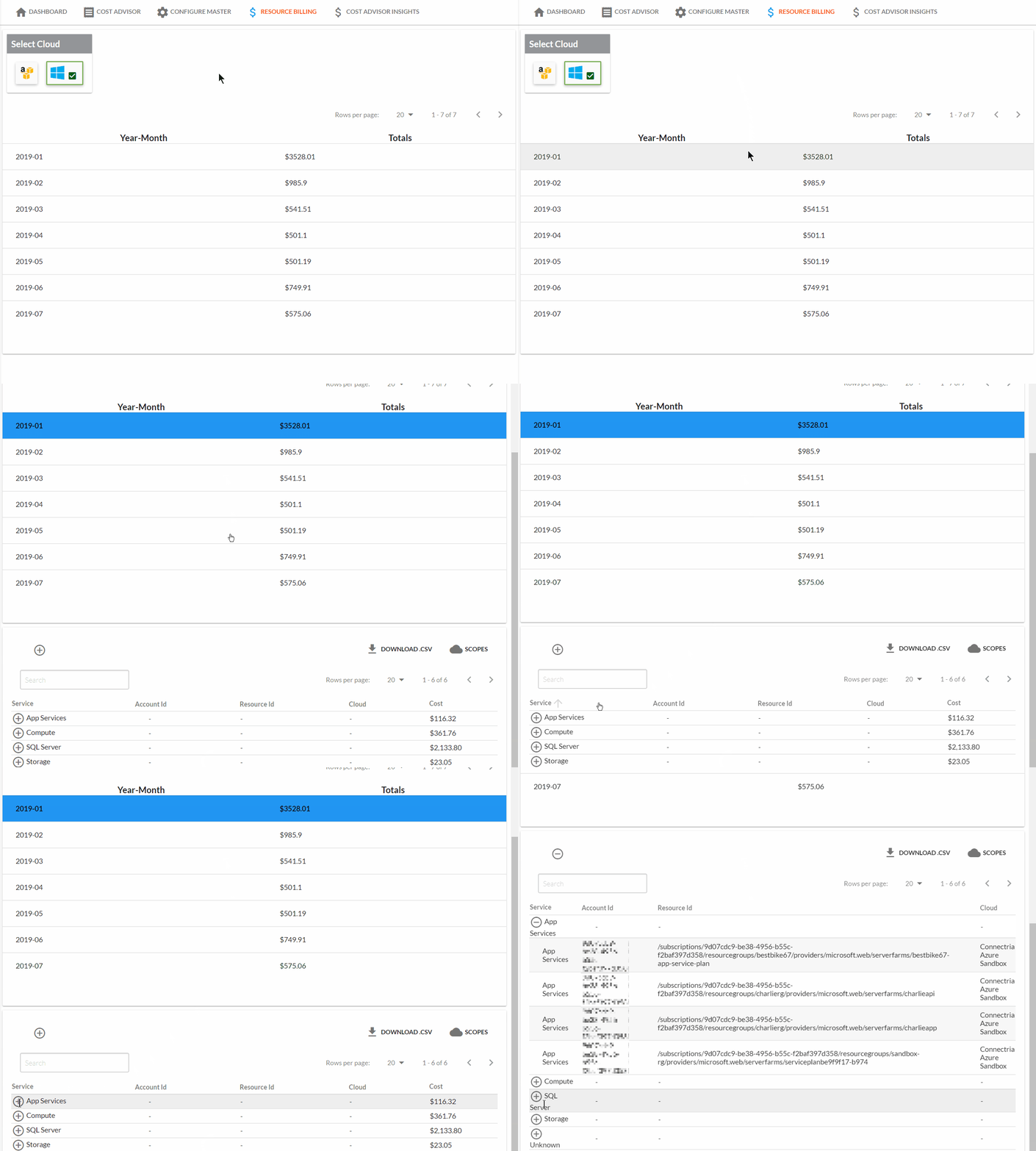
Viewing the resource spend for each month
You can also download your monthly resource spend to a csv file by clicking on the DOWNLOAD.CSV button after selecting a month or by clicking on the Download Resource Spend button on the Cost Explorer Dashboard.
Note
If you apply scopes while on the resource billing page, these scopes will not be applied to your csv file download.
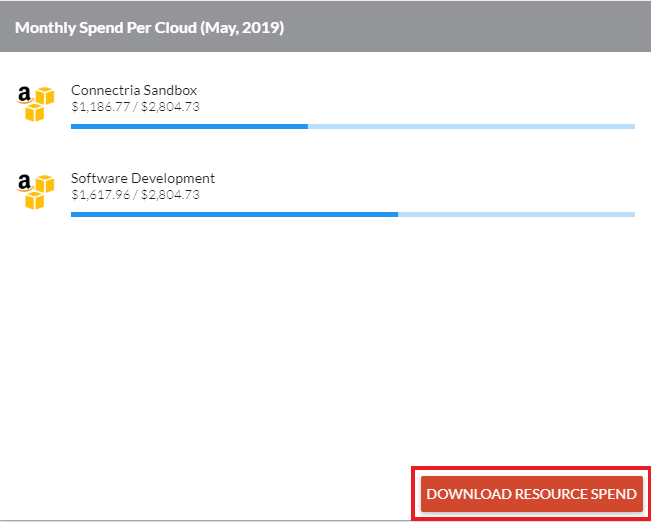
Cost Advisor Insights
Cost Advisor Insights provides potential monthly savings for each resource inside of your clouds.
Each resource will have a status check attached telling you if you could be saving costs for that resource. By clicking on a check you will be able to view additional details, such as the affected resources, alert criteria, and the recommended action(s) to take. You can also scope the status checks by clicking on the corresponding status icon above the table.
Note
You may also scope by cloud type and cloud name by selecting the corresponding cloud icon under “Select Cloud” or the desired cloud name in the drop-down menu above the table respectively.
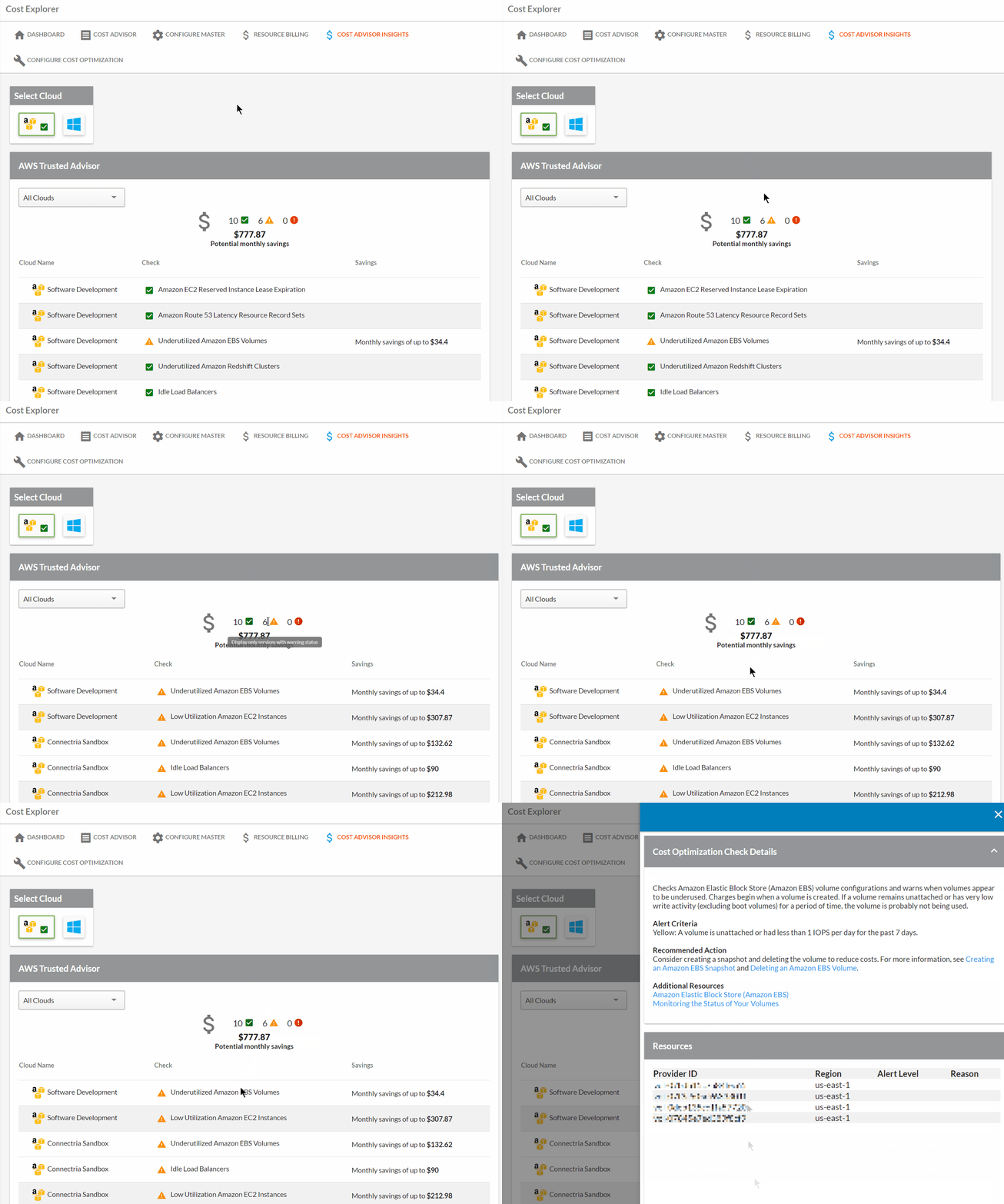
Viewing resource cost saving details