API Access Keys
Note well, these instructions assume you have added the IAM Policy as described here.
Steps
1.) Identity & Access Management Console
Login to the AWS console and access the Identity & Access Management service.
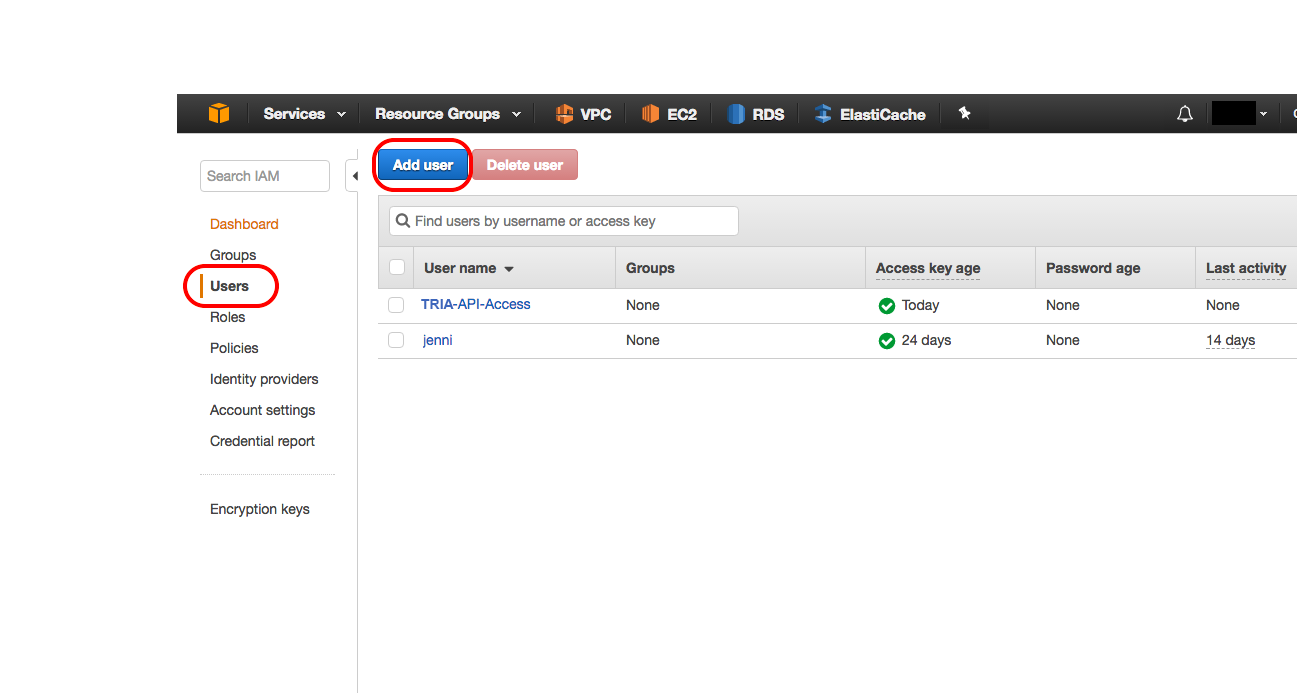
Users. Click on Users on the left navigation window.
Add User. Click on the Add User button.
2.) Set User Details
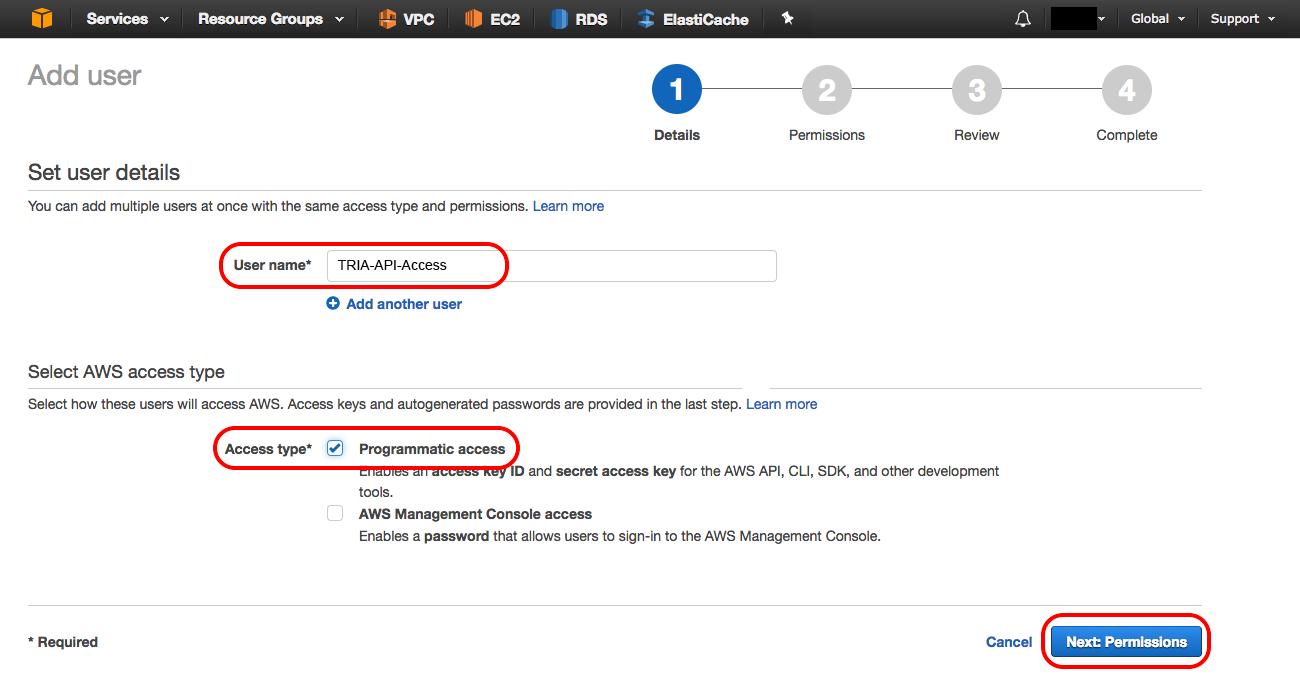
a. User name. Enter a user name to denote that this account is used for TRiA. As an example you could set the user to TRiA-API-Access. By creating a specific TRiA user, you are then able to monitor in CloudTrail all actions taken by that user, which helps you understand what TRiA is doing versus what other users are doing and facilitates troubleshooting.
b. Programmatic Access. Check Programmatic access as an Access type. That allows TRiA to call APIs programmatically.
Permissions. Click on Next: Permissions.
3.) Set Permissions
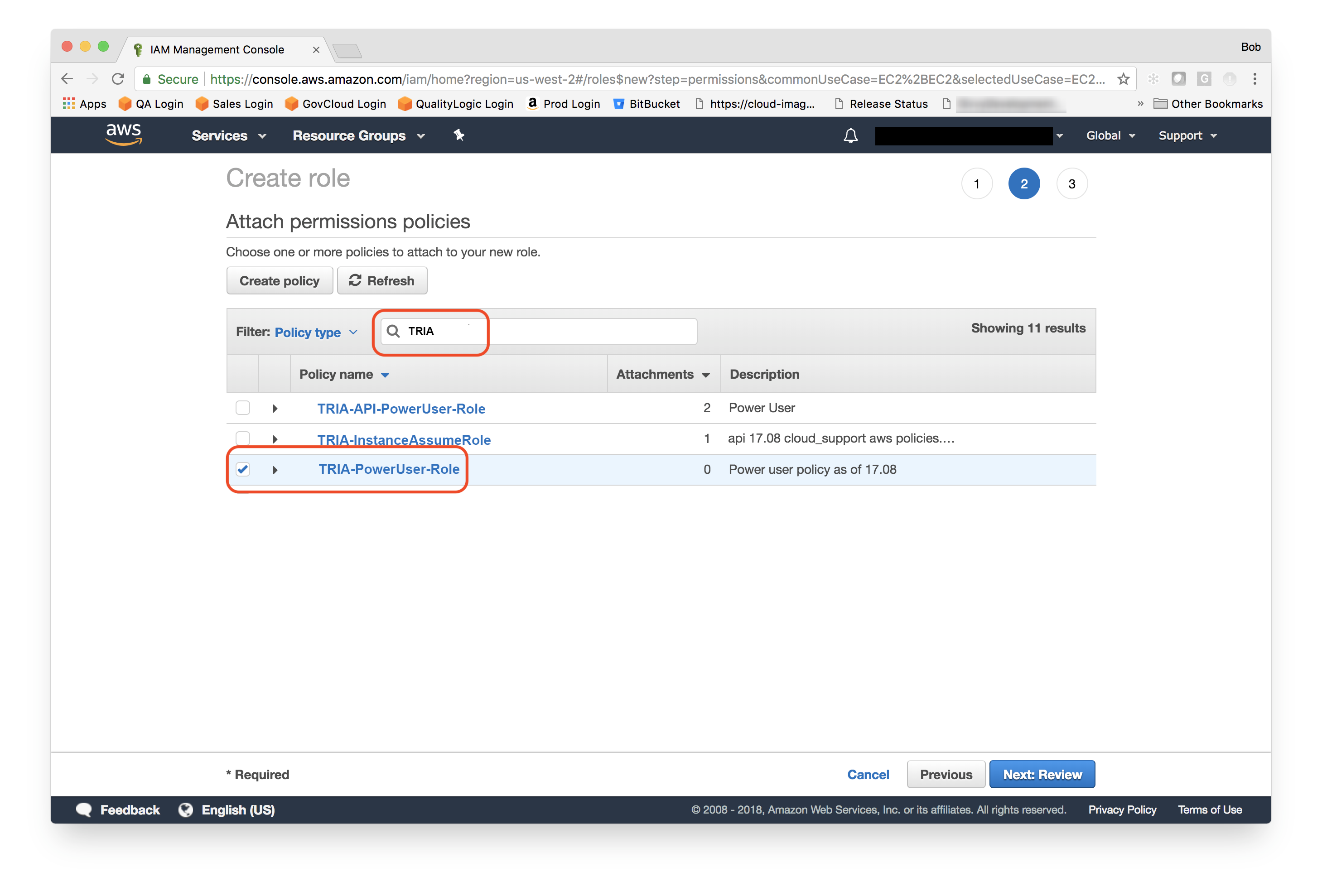
a. Attach Existing Policies Directly. Choose Attach existing policies directly.
b. Select. Select your newly created policy, e.g., TRiA-PowerUser-Policy. You can find it by filtering your results by name.
Review. Click on Next: Review.
4.) Create User
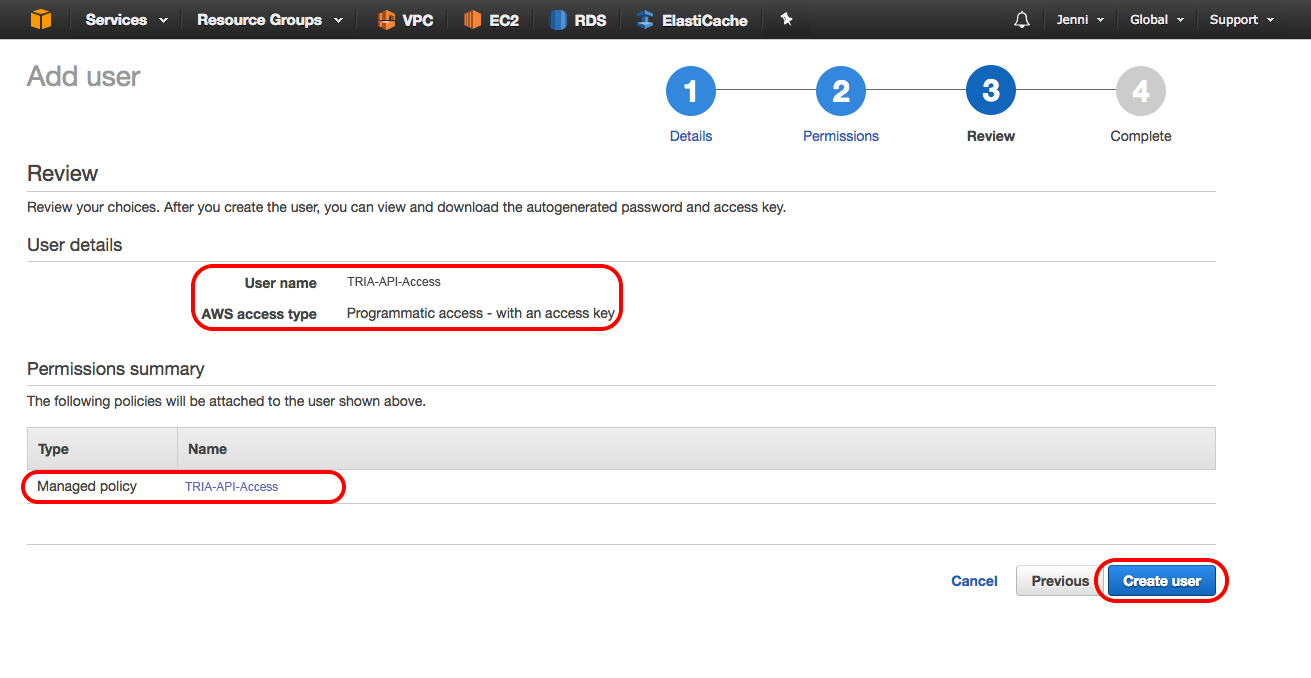
Click on Create user after confirming that your User name and AWS access type are correct and that your Permissions summary displays the policy that you just created.
5.) Confirm
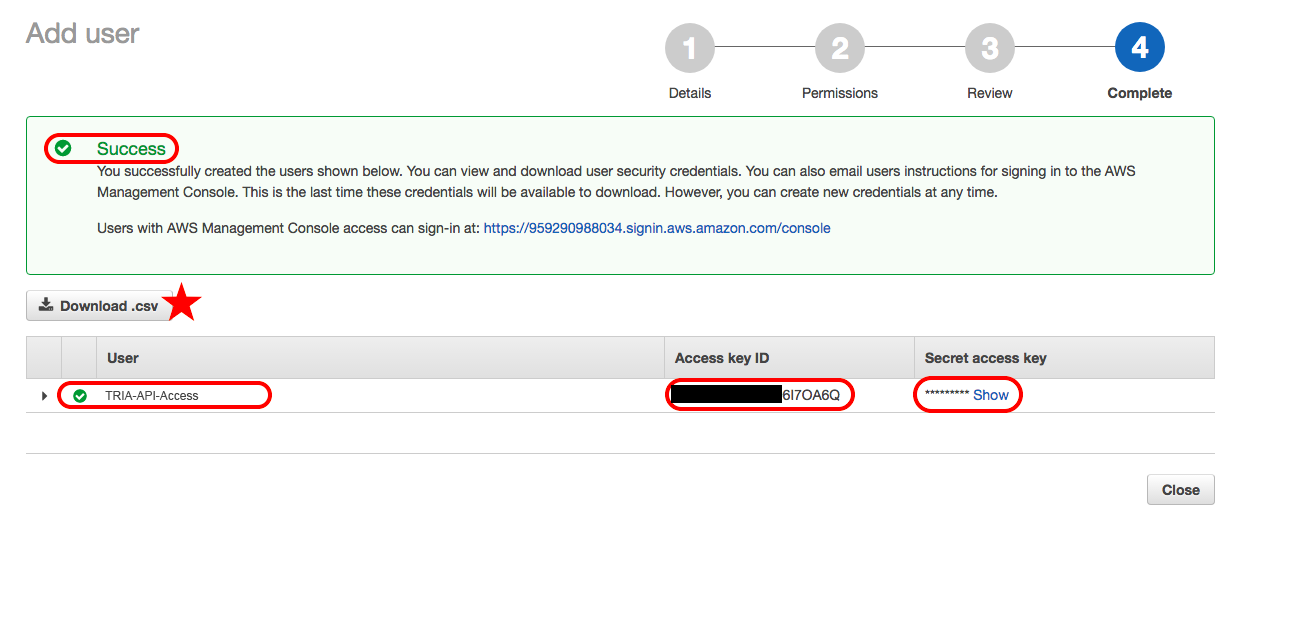
You should receive a Success message from the console at this point. Assuming that you have, you will see your user listed along with an Access key ID and Secret access key. Do not close out this screen until you have saved your Access key ID and Secret access key. You will not get another chance to do so (start over again if you did by accident). You can save your keys by clicking on Download .csv, copying & pasting the values, or, as documented here, entering the values in TRiA directly. However you choose, you will need your Account Number, Access key ID, and Secret access key.
6.) TRiA
Go to your TRiA account.
7.) Add Cloud
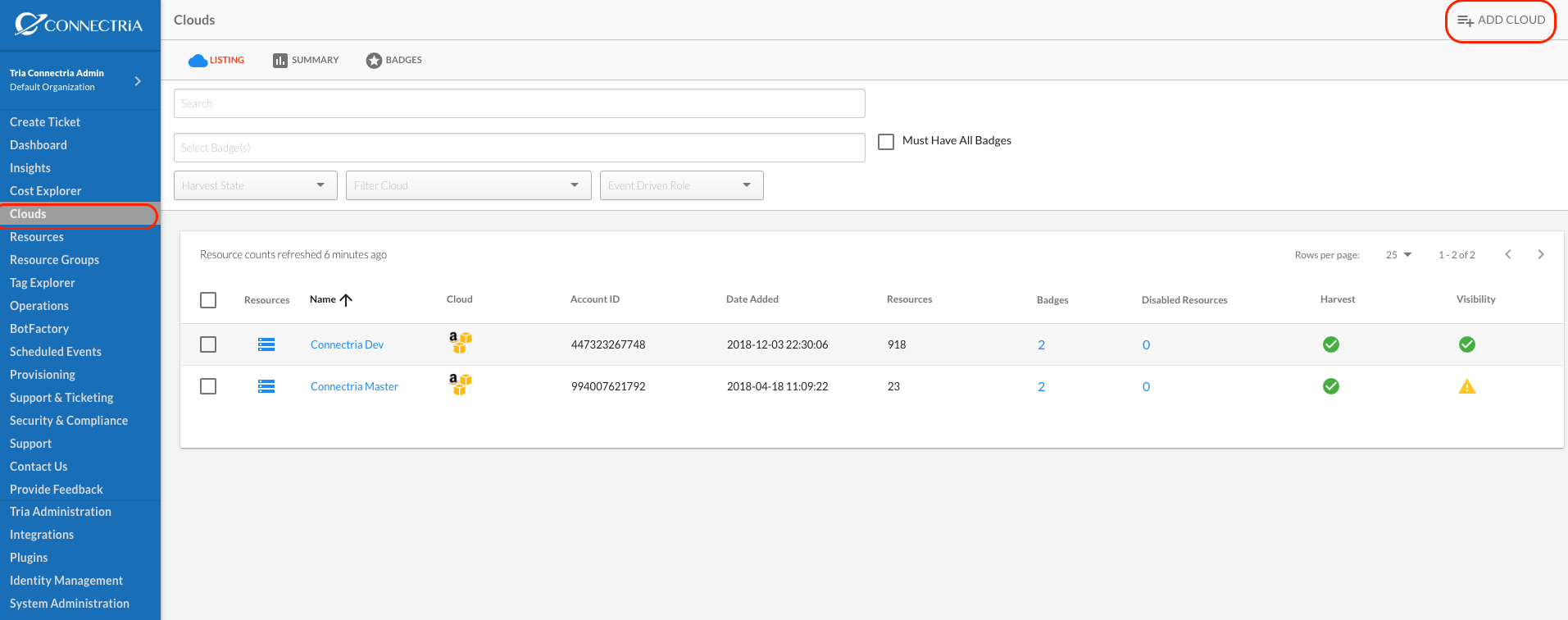
Navigate to Clouds on the left-hand menu. Click on Add Cloud in the upper right.
8.) Enter Cloud Information
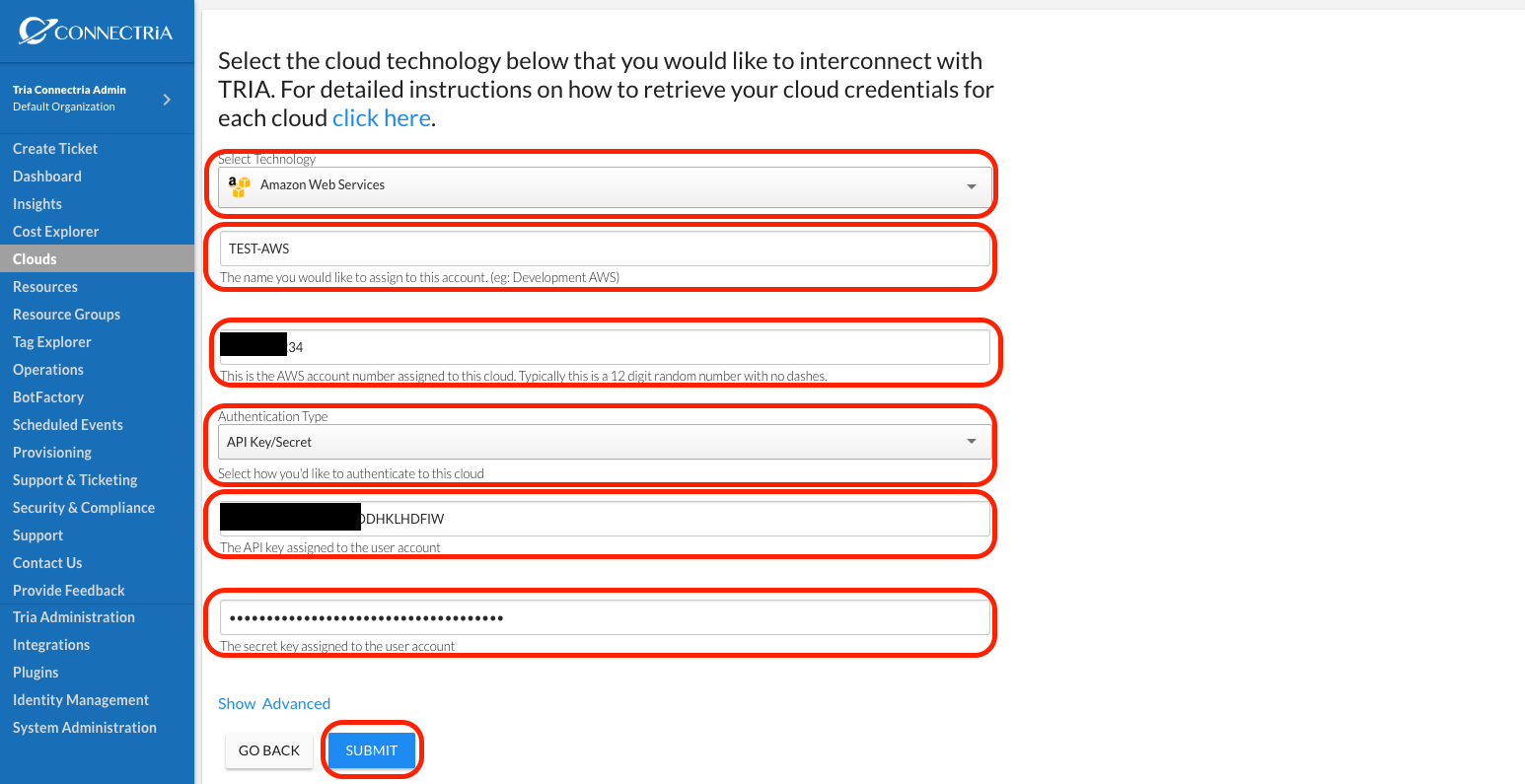
Select the type of cloud account in the Select Technology dropbox.
Name your cloud account.
Enter your Account Number (without dashes).
Choose API Key/Secret from the Authentication Type dropbox.
Enter your Access key ID in the API Key box.
Enter your Secret access key in the Secret Key box.
Click on Submit.
9.) Confirm
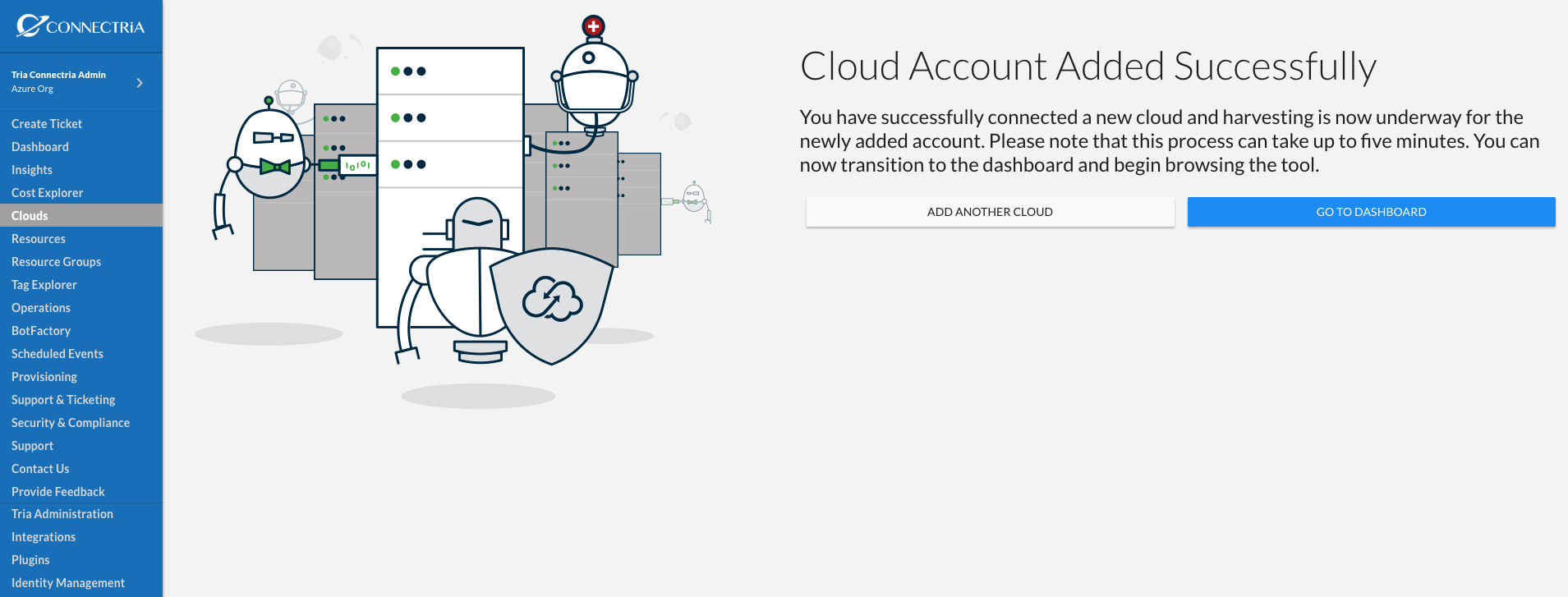
You should see a screen that indicates you have successfully added a cloud account. TRiA will begin harvesting immediately and the data should start to surface afer five minutes or so depending upon the size of your cloud account.
You can see your cloud account is added by selecting Clouds in the left-hand side navigation menu and confirming that your newly added cloud account is listed.