Slack Integration
The Slack integration provides TRiA the ability to send notification messages to Slack channels, and is compatible with all TRiA resources. As an example, you can send high priority security alerts when noncompliant Security Group rules are provisioned such as SSH open to the world.
Follow the steps below to configure and leverage the integration:
1.) Access Slack Integrations
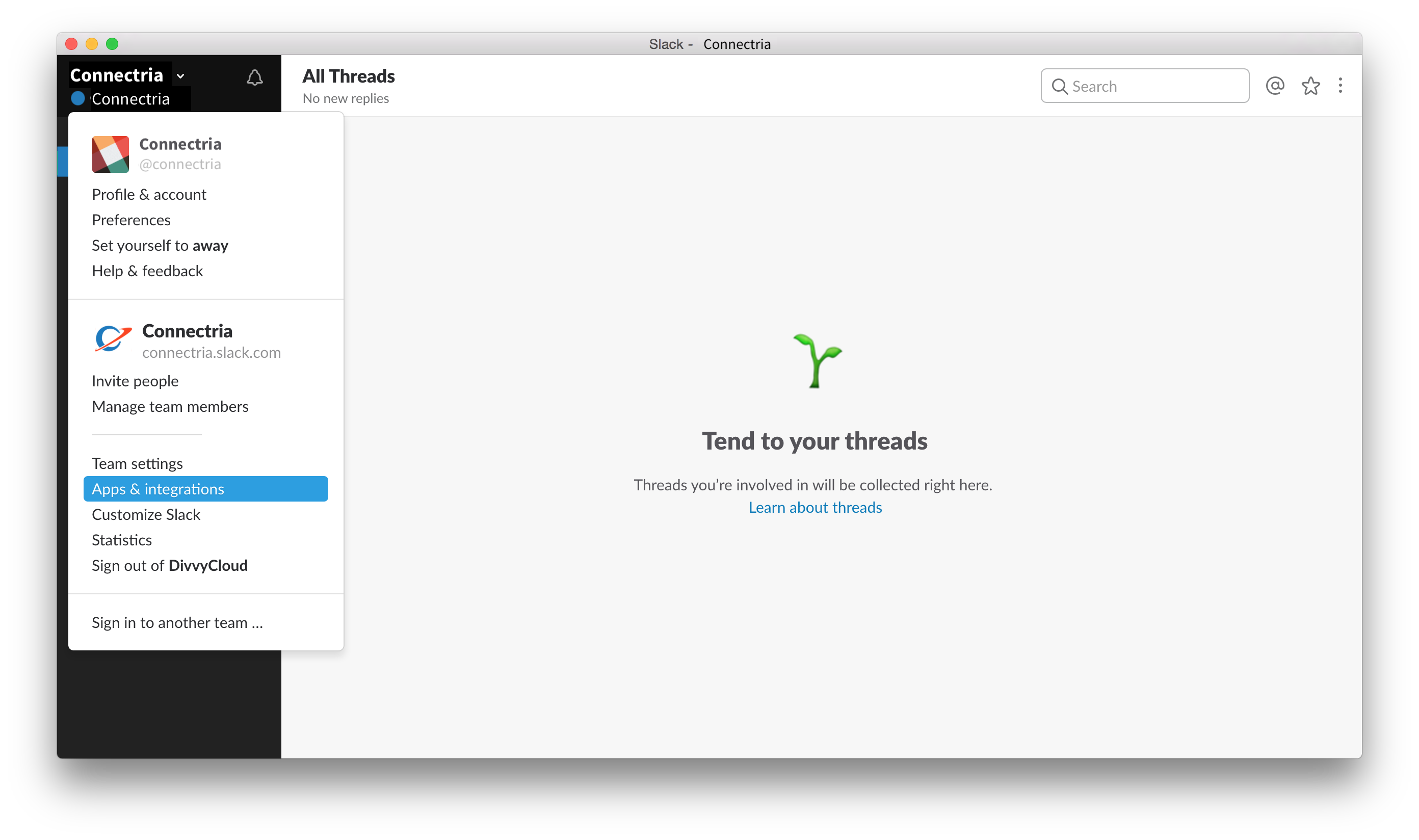
From your Slack application, select Apps & Integrations from the menu.
2.) Manage Integrations
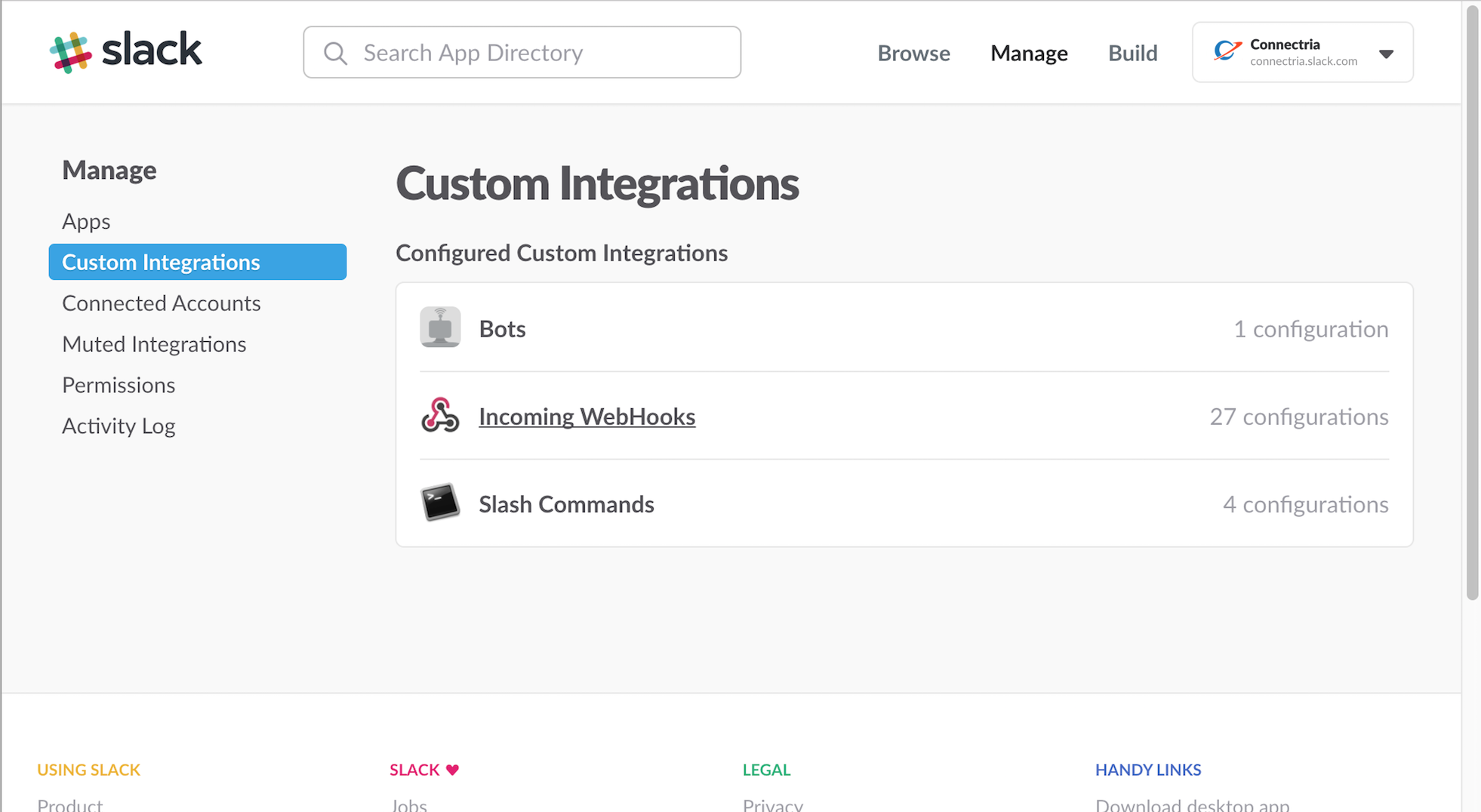
At the top right, select Manage from the menu and then select Custom Integrations.
3.) Add a New Configuration
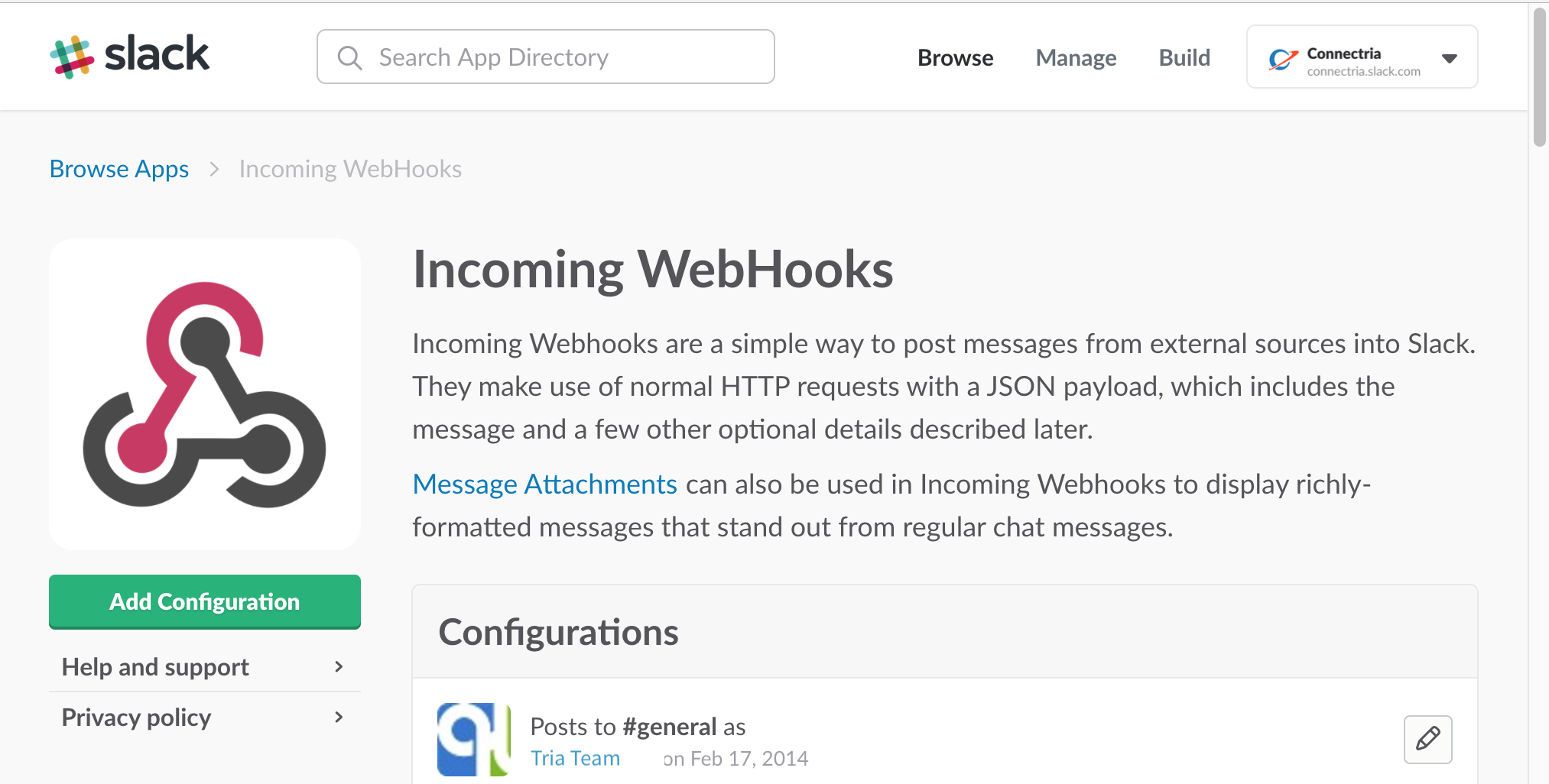
In the resulting window, click on Add New Configuration on the left side of the screen.
4.) Configure Settings
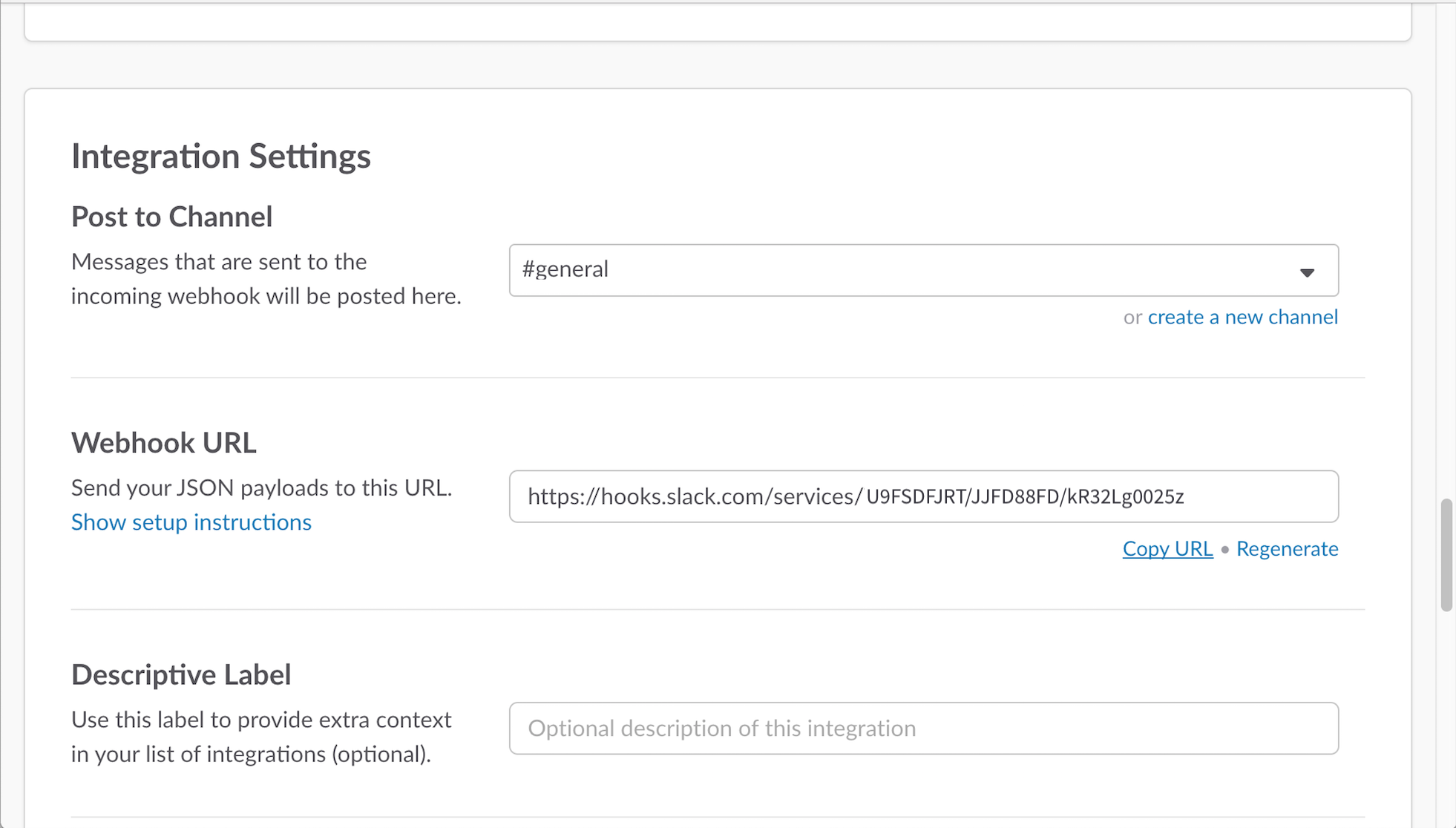
Configure the incoming webhook as desired, including the default channel to post to. Note that this integration can override the channel setting and send to any desired channel. Make sure to copy the webhook URL down as you will need it for the next step. Click on Save Settings when you are satisfied with the configuration.
5.) Update TRiA
Enter the Webhook URL from the previous step in the Slack modal and click “Save”.
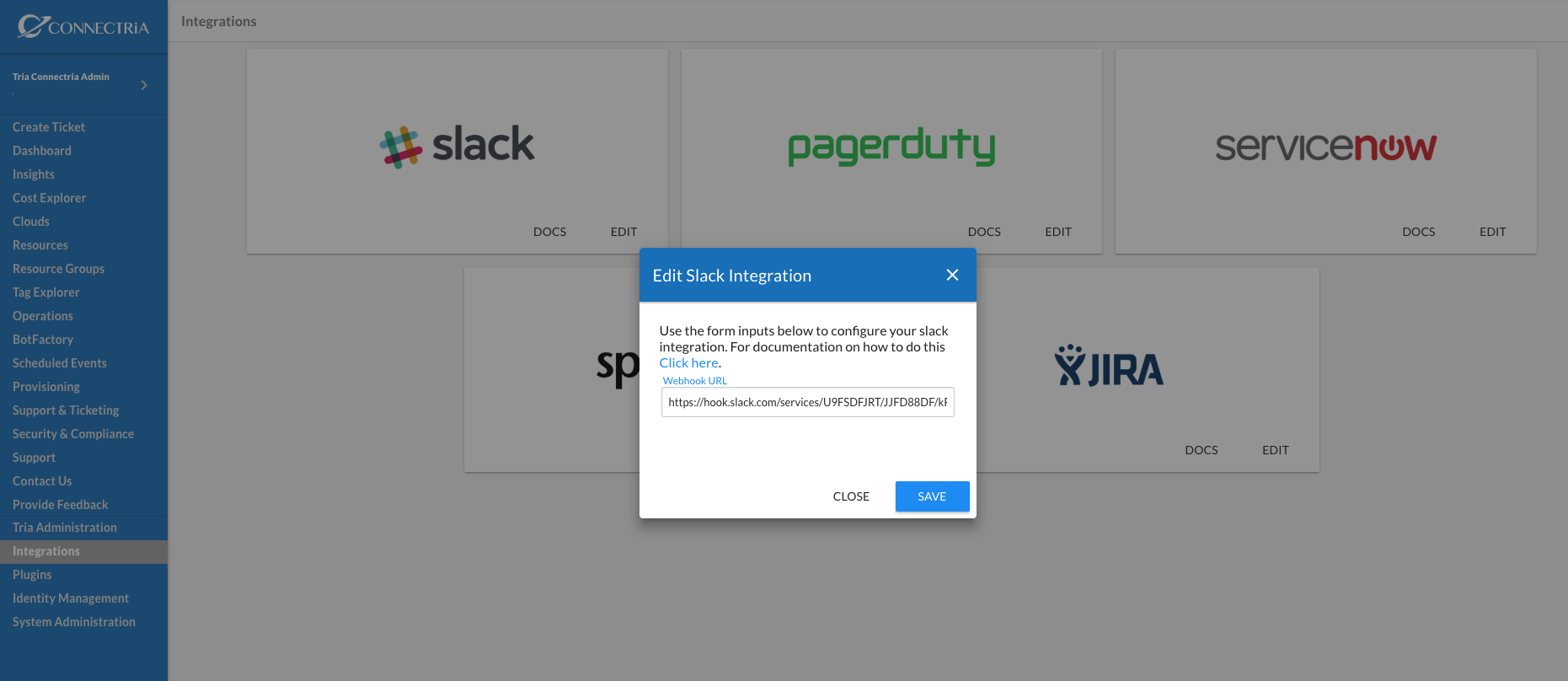
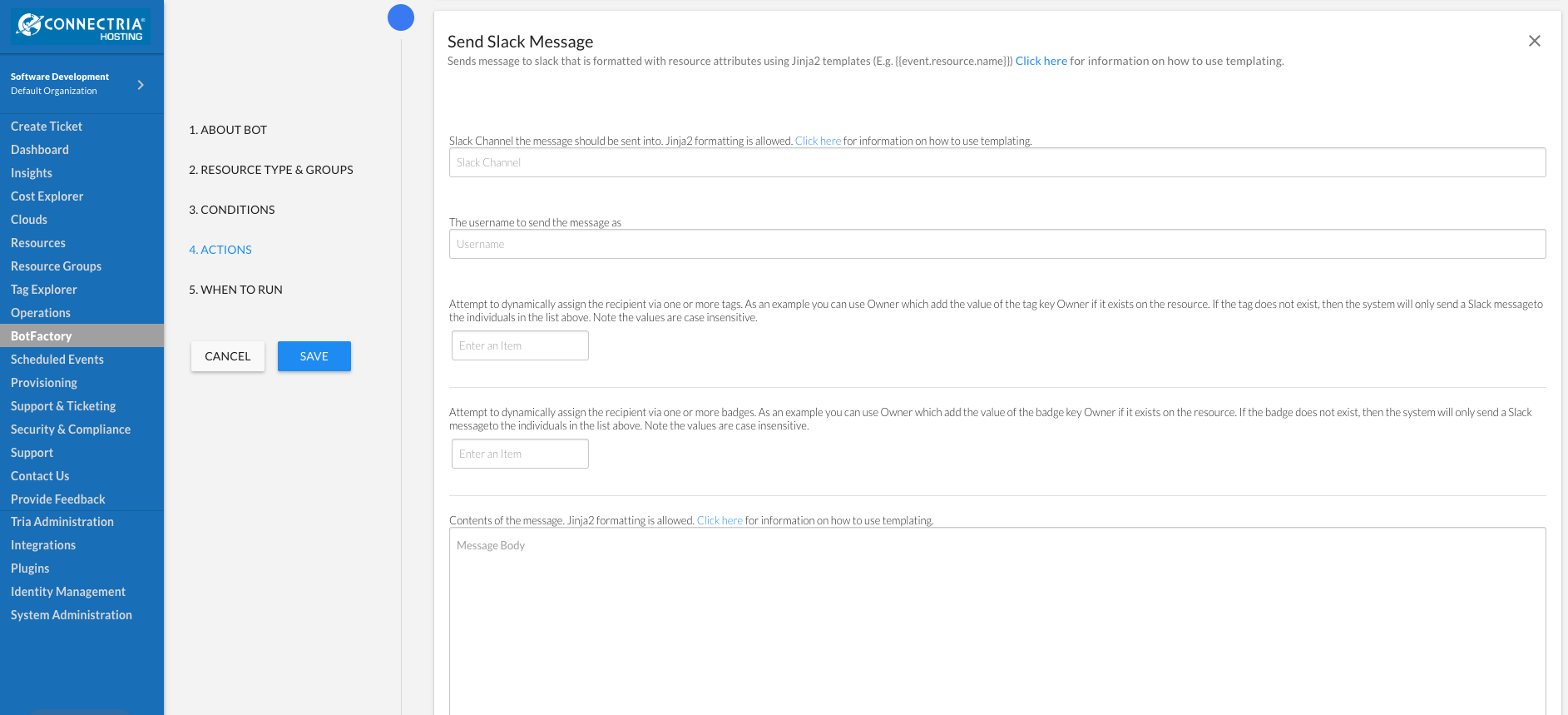
Once this is done you can now leverage the TRiA Slack action within your Bot configurations. As you can see from the image below, you can specify the sender, channel and message sent for each action.
Jinja Templating
Jinja templating is now supported for the Channel as well as the message body.
This allows dynamically specifying the recipient of a slack message. As an example, a
Cloud Account bot could message matching slack users by setting the
Slack Channel to @{{resource.user_name}}.